
Will Phone Repair Delete Your Photos and Personal Data?
Introduction
Your smartphone contains some of your most valuable information, from family photos and videos to personal messages, contacts, banking apps, and important documents. So, if your phone needs a screen replacement, battery repair, or charging port repair, it is natural to wonder: Will phone repair delete your photos and personal data?
The good news is that many common phone repairs can be completed without deleting your personal data. However, data loss is still possible in certain situations, particularly when a device needs a factory reset, has serious software problems, or requires repairs involving its internal storage.
Before handing over your phone, it is important to understand which repairs may affect your data and how you can protect your information.
In this guide, Angel Tech Repairs explains what happens to your data during phone repairs, how to back up your files, and what steps you can take to protect your privacy.
Does Phone Repair Delete Your Photos and Data?
No, phone repair does not automatically delete your photos or personal data. Whether your information remains safe depends on the type of repair, the condition of your device, and the procedures required to fix it.
For example, a straightforward screen replacement or battery replacement often does not require erasing the phone’s internal storage. Your photos, contacts, messages, and apps may remain exactly as they were before the repair.
However, certain repairs involve software restoration, factory resetting, or replacing components that affect data storage. These procedures can result in data loss.
Here is a general overview:
Type of repair | Is data loss possible? |
Screen replacement | Usually not required, but possible |
Battery replacement | Usually not required, but possible |
Charging port repair | Usually not required, but possible |
Camera replacement | Usually not required, but possible |
Speaker or microphone repair | Usually not required, but possible |
Software troubleshooting | Depends on the procedure |
Factory reset or operating system restoration | Yes, local data may be erased |
Internal storage or motherboard repair | Data recovery may be complicated or impossible |
These are general expectations rather than guarantees. The exact procedure depends on the phone model and the underlying fault.
Which Phone Repairs Are Least Likely to Affect Your Data?
Understanding the type of repair can help you prepare your device and ask the right questions before booking a service.
1. Phone Screen Replacement
A cracked or unresponsive screen is one of the most common reasons people seek phone repairs.
In many cases, replacing the damaged display does not require deleting photos, contacts, messages, or applications. The technician replaces the faulty screen while the phone’s storage remains intact.
However, additional problems can complicate the repair. For example, a phone that has suffered severe impact damage may have internal faults beyond the display.
If your screen is broken but the phone still works, back up your data before the repair whenever possible.
2. Phone Battery Replacement
If your battery drains quickly, your phone switches off unexpectedly, or the battery no longer holds a charge, you may need a replacement.
A routine battery replacement generally does not require erasing personal data. Nevertheless, an older or damaged phone may develop additional problems during servicing, so keeping a recent backup is still advisable.
If the battery is swollen, stop using or charging the phone and arrange professional assistance. Do not press, puncture, or attempt to remove a swollen battery yourself.
3. Charging Port Repair
A faulty charging port can prevent your phone from charging properly or connecting to a computer.
Repairing or replacing the charging port usually does not require deleting your personal files. However, a phone that cannot charge or power on may make backing up your information difficult.
If your phone still has sufficient battery power, consider backing it up before taking it for repair.
4. Camera, Speaker, and Microphone Repairs
Problems with your camera, speakers, or microphone can affect everyday phone use, but repairs to these components generally do not require erasing stored data.
Your existing photos and videos should ordinarily remain on the device after a routine camera repair. However, if the device also has software or motherboard problems, the repair requirements may be different.
When Can Phone Repair Delete Your Data?
Although many repairs preserve your data, there are situations in which your files may be erased or become inaccessible.
1. Factory Reset
A factory reset removes local user data and returns the device to its initial setup state.
A technician may recommend a reset when troubleshooting certain persistent software issues. Before agreeing, ask whether there is another diagnostic option that could avoid erasing the device.
Never assume that a factory reset is necessary for every phone repair.
2. Software Restoration or Operating System Problems
If your phone is stuck in a boot loop, repeatedly crashes, or fails to start properly, software troubleshooting may be required.
Some procedures can preserve existing information, while others may require erasing the device. The outcome depends on the operating system, the fault, and the repair method.
Ask the repair provider to explain the proposed procedure and its potential impact on your files before proceeding.
3. Motherboard or Internal Storage Damage
Serious hardware faults can make data recovery much more difficult.
If the motherboard, storage components, or associated circuitry are damaged, your photos and files may become inaccessible even if they have not been deliberately deleted.
In these cases, a standard repair and a data recovery attempt are not necessarily the same thing. If your information is especially important, tell the technician before authorising work that could affect the existing storage or device state.
4. Water Damage
Liquid exposure can damage internal circuits and cause a phone to stop working unexpectedly.
Even if the phone appears to recover, internal corrosion may cause further problems. Data may remain intact, but access to it can become difficult if the device fails to power on.
If your phone gets wet, switch it off if safe to do so, avoid charging it, and seek professional advice. Do not repeatedly turn it on to check whether it works.
5. Replacing the Phone or Its Storage Components
Sometimes, repairing a severely damaged device is not practical, and a replacement device may be recommended.
Your information does not automatically transfer to a replacement phone. You will generally need a backup, a supported transfer method, or a data recovery solution to retrieve information from the original device.
Before agreeing to a device replacement, clarify whether your existing data can be preserved or recovered.
How to Protect Your Photos and Personal Data Before Phone Repair
The most effective way to reduce the risk of losing important files is to prepare your phone before handing it over.
Step 1: Back Up Your Phone
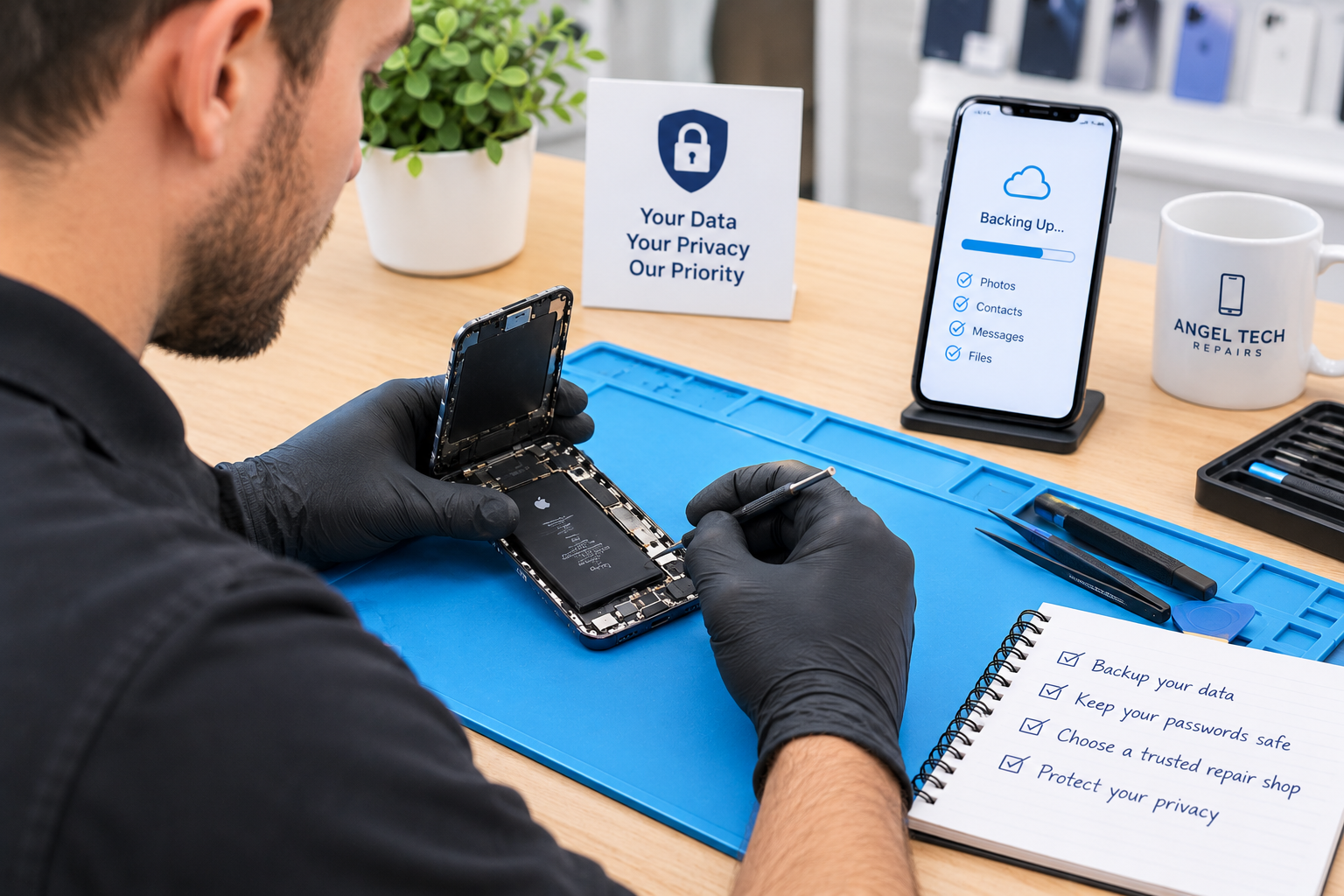
Create a recent backup before the repair whenever possible.
For iPhone users:
- Open Settings and tap your name.
- Select iCloud, then iCloud Backup.
- Choose the option to back up your iPhone, if available.
- Check that the backup completes successfully.
You can also back up your iPhone to a compatible Mac or Windows computer.
For Android users:
- Open Settings and locate the Google backup settings.
- Review which information is included in your backup.
- Start a backup if the option is available.
- Check whether your photos and videos are separately backed up through Google Photos or another service.
Menu names and available options vary by phone model and operating system.
Remember that a device backup may not include every file or application detail. Check that your most important photos, videos, contacts, and documents are actually backed up or synced.
Step 2: Verify Your Backup
Starting a backup is not the same as confirming that it has completed successfully.
Check the latest backup date and review your cloud storage or computer backup. If your photos are especially important, confirm that you can access them from another device.
Do not assume every photo is stored in the cloud simply because cloud backup is enabled.
Step 3: Protect Your Passwords and Accounts
Your phone may contain access to email, social media, banking services, and other sensitive accounts.
Before repair:
- Never write your passwords on a note attached to the phone.
- Do not share your Apple Account or Google Account password unnecessarily.
- Use the manufacturer’s recommended repair preparation process.
- Ask whether the repair can be completed without providing your device passcode.
- If access is required for a specific diagnostic test, understand why and remain present where practical.
Apple specifically advises customers not to share their Apple Account password or device passcode with repair staff. Some software support procedures may require access to the device, so clarify the requirement and follow the manufacturer’s guidance.
Step 4: Use a Privacy or Repair Mode if Available
Some smartphones offer a dedicated mode that limits access to personal information during servicing.
For example, supported Google Pixel devices offer Repair Mode, while supported Samsung Galaxy devices offer Maintenance Mode. These features help technicians work on the device without accessing your normal personal environment.
Availability depends on the phone model and software version. Follow the manufacturer’s instructions and still create a backup before repair.
Step 5: Remove Sensitive Items When Appropriate
Depending on the manufacturer’s repair instructions, you may need to remove a physical SIM card, remove payment cards from the device’s wallet, or disable certain security features.
Only disable security protections when the official repair process requires it, and restore them after the repair.
Do not erase your phone simply because you are taking it for a routine screen or battery replacement unless the repair provider or manufacturer has explained why this is necessary.
Should You Give a Repair Technician Your Phone Passcode?
This is a common concern, and the answer depends on the repair.
For some straightforward hardware repairs, the technician may be able to complete the work without unlocking your phone. Certain diagnostic procedures, however, may require access to specific functions.
Before sharing access, ask:
- Why is the passcode needed?
- Can the repair be completed without unlocking the device?
- Can you enter the passcode yourself when required?
- Is there a repair or maintenance mode available for your phone?
- Will the technician need to access personal applications or files?
Avoid sharing account passwords or verification codes. If a repair requires you to unlock the device, provide access only when you understand the reason and trust the service provider.
Your photos and messages are personal, and protecting your privacy should be part of preparing for any repair.
What Should You Do If Your Phone Has Already Lost Its Data?
If you notice that photos or files are missing after a repair, avoid immediately resetting the device or installing unfamiliar recovery applications.
Instead:
- Check whether you are signed in to the correct cloud account.
- Review your recently deleted photos or files folder.
- Check your most recent cloud or computer backup.
- Contact the repair provider and explain what is missing.
- If the data is irreplaceable, seek advice from a reputable data recovery specialist before attempting further repairs.
Recovery is not guaranteed. The chances depend on whether the data was actually erased, whether the storage remains functional, and whether a suitable backup exists.
Avoid unnecessary changes to the device until you understand the cause of the missing data.
How Can You Choose a Phone Repair Service That Respects Your Privacy?
Choosing a repair provider involves more than comparing prices and turnaround times. It is also important to understand how your device and personal information will be handled.
Before booking, look for a provider that:
- Explains the proposed repair and any risk of data loss.
- Recommends backing up important information beforehand.
- Requests only the access necessary for the repair.
- Explains whether a reset or software restoration may be required.
- Gives you an opportunity to ask questions before authorising additional work.
A responsible repair process should make the risks clear rather than promise that data loss is impossible.
Phone Repair in Angel, Islington: Get Your Device Checked
If your phone has a cracked screen, a faulty battery, a charging problem, or another hardware issue, you may be able to have it repaired without losing your photos and personal files.
At Angel Tech Repairs, customers can enquire about available device repair services in Angel, Islington, London.
Before booking, explain the problem with your phone and mention if preserving your existing data is a priority. Ask whether the proposed repair involves any risk of data loss and whether a backup or additional diagnostic assessment is recommended.
Visit Angel Tech Repairs to explore available services and enquire about your repair options.
Remember: backing up your device before a repair is one of the simplest and most effective ways to protect your important information.
Frequently Asked Questions
Will changing my phone screen delete my photos?
A routine screen replacement usually does not require erasing your photos or other personal data. However, data loss is possible if the phone has additional faults or the repair requires other procedures. Back up your device beforehand whenever possible.
Will changing my phone battery erase everything?
A standard battery replacement generally leaves your personal data intact. Nevertheless, it is advisable to back up your phone before any repair because unexpected hardware or software problems can occur.
Can a technician see my photos during a phone repair?
It depends on the device’s security settings, whether it is unlocked, and the diagnostic work required. A locked phone restricts access, while certain unlocked functions may expose personal information. Ask about privacy safeguards and use a supported repair mode if available.
Should I factory reset my phone before taking it for repair?
Not necessarily. A factory reset erases local data and is not routinely required for every hardware repair. Back up your information first and follow the manufacturer’s specific service instructions.
Can I recover photos if my phone will not turn on?
Possibly. If the photos were backed up, you may be able to restore them from a cloud service or computer. If no backup exists, recovery depends on the nature of the hardware damage and whether the original storage remains accessible.
Does a phone repair shop need my Apple Account or Google Account password?
Routine hardware repairs generally should not require you to disclose your account password. Never share it without a clear, verified reason. Follow the manufacturer’s official repair instructions and ask whether there is an alternative way to complete the service.
Final Thoughts
So, will phone repair delete your photos and personal data? In most routine hardware repairs, it is not necessary to erase your information, but data loss can never be ruled out completely.
The best approach is to back up your files, verify that the backup is complete, protect your account credentials, and understand the repair procedure before handing over your device.
Whether you need a screen replacement, battery repair, or help diagnosing a more serious fault, taking these precautions can help protect the photos, messages, and documents that matter most.
For phone repair enquiries in Angel, Islington, visit Angel Tech Repairs and discuss your device’s needs before proceeding.