
Why Does My Laptop Become Slow After Several Hours of Use?
Introduction
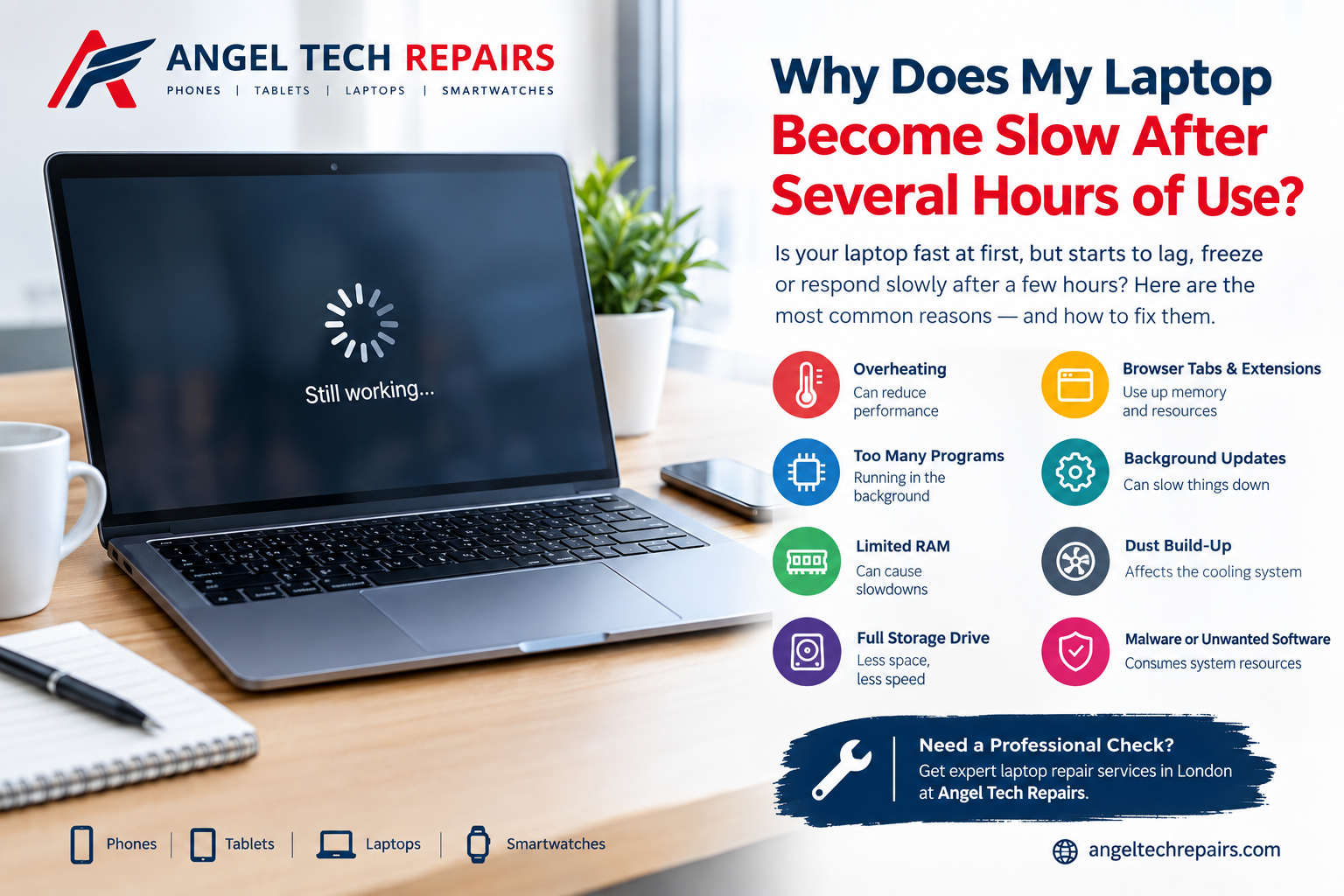
Have you noticed that your laptop works perfectly when you first turn it on, but becomes slower after you’ve been using it for several hours? Apps may take longer to open, web pages can become sluggish, and the laptop might even start freezing or responding slowly.
This type of slowdown is fairly common and does not necessarily mean your laptop needs to be replaced. In many cases, the problem can be related to overheating, limited memory, background applications, storage issues, or other hardware and software problems.
Understanding the cause can help you decide whether a simple maintenance step is enough or whether you need professional laptop repair.
Why Does a Laptop Slow Down After Several Hours?
A laptop has limited processing, memory and cooling resources. During extended use, these resources can become increasingly busy. If something is consuming too much of the available CPU, RAM or storage performance, the system may gradually become less responsive.
Here are some of the most common causes.
1. Overheating Can Reduce Performance
One of the most common reasons for a laptop becoming slower over time is heat.
Your laptop generates heat whenever the processor and other components are working. During long periods of use, temperatures can rise, especially when the cooling system is affected by dust or blocked ventilation.
Modern processors can automatically reduce their performance when temperatures become too high. This helps protect the hardware but can make the laptop feel noticeably slower.
If you notice that the fan becomes louder, the laptop feels unusually hot, and performance drops after extended use, overheating could be contributing to the problem.
Keeping air vents clear and having the internal cooling system checked can help.
2. Too Many Programs Are Running
You may not realise how many applications are running in the background.
Software such as cloud-storage services, messaging apps, browsers, update tools and other utilities can continue using system resources even when you’re not actively using them.
After several hours, these processes can consume a significant amount of RAM and processing power.
Windows Task Manager can help identify which applications are using the most CPU, memory and disk resources. Closing unnecessary programs can sometimes improve performance immediately.
3. Limited RAM Can Cause Slowdowns
RAM is the short-term memory your laptop uses to handle active applications and tasks.
If you open a large number of browser tabs, edit photos or videos, run professional software, or multitask between several programs, your laptop may eventually run short of available memory.
When this happens, the operating system can rely more heavily on storage for temporary data. Storage is generally slower than RAM, which can result in noticeable lag.
Insufficient RAM is a particularly common issue on older laptops or machines with entry-level hardware.
4. Your Storage Drive May Be Nearly Full
A laptop with very little free storage can experience performance problems.
Temporary files, downloads, application data, operating-system files and other content can gradually consume available space.
Check your main storage drive and remove files or applications you no longer need. Moving large personal files to external storage or cloud storage can also help create additional space.
If the laptop still uses an older mechanical hard drive, upgrading to an SSD may provide a significant improvement in responsiveness.
5. Browser Tabs and Extensions Can Build Up
Web browsers can consume substantial amounts of memory, particularly when you have many tabs open.
If you regularly keep dozens of tabs open for hours, your laptop may eventually have less available memory for other applications.
Browser extensions can also run in the background and use additional resources.
Try closing tabs you no longer need and removing extensions that you don’t use. If the laptop becomes noticeably faster afterward, browser resource usage may have been part of the problem.
6. Background Updates and Processes
Operating-system updates, application updates, indexing and security scans can sometimes use CPU, memory or disk resources.
If one of these processes starts while you’re working, you may notice a temporary drop in performance.
This is particularly noticeable on older machines or laptops with slower storage.
If the slowdown happens around the same time each day, check Task Manager while the problem is occurring. Looking at resource usage while the laptop is actually slow is more useful than checking it only when the machine is working normally.
7. Dust Can Affect the Cooling System
Dust can accumulate inside a laptop over time.
When dust restricts airflow or covers cooling components, the system may have more difficulty removing heat. This can contribute to higher temperatures and reduced performance during longer sessions.
If your laptop becomes progressively hotter and slower, professional cleaning and inspection may be worthwhile.
Avoid using the laptop on soft surfaces such as beds or thick blankets, as these can restrict ventilation openings.
8. An Aging Hard Drive Could Be the Problem
Older laptops may still use traditional hard disk drives (HDDs).
An ageing or heavily used drive can contribute to slow application loading, file access and general system responsiveness. If disk usage remains extremely high while the laptop is struggling, the storage drive deserves attention.
Before replacing a drive, make sure important files are backed up. A professional technician can also check the drive’s condition and determine whether an upgrade is appropriate.
9. Malware or Unwanted Software
Malware and unwanted applications can consume system resources in the background.
A sudden or unexplained change in performance can justify running a trusted security scan. If you notice unfamiliar programs, unexpected pop-ups or unusual system behaviour alongside the slowdown, the issue may require more than routine maintenance.
Don’t install multiple random “PC cleaner” programs in an attempt to solve the problem. Some unnecessary utilities can add more background processes instead of improving performance.
How Can You Tell What Is Causing the Slowdown?
The most useful time to investigate the problem is while the laptop is actually running slowly.
On Windows, open Task Manager and check:
- CPU: Shows whether the processor is heavily loaded.
- Memory: Shows how much RAM is being used.
- Disk: Helps identify storage activity.
- Processes: Shows which applications are consuming resources.
For example, consistently high memory usage may point toward insufficient RAM or resource-heavy applications. High disk activity can indicate storage-related problems or background processes.
Temperature should also be considered if the slowdown is accompanied by loud fans or excessive heat.
Simple Things You Can Try
Before taking your laptop for repair, try a few basic steps:
- Restart the laptop.
- Close unnecessary applications and browser tabs.
- Check available storage space.
- Remove programs you no longer use.
- Review startup applications.
- Install available operating-system updates.
- Run a reputable malware scan.
- Keep the laptop’s ventilation areas unobstructed.
- Back up important files regularly.
- Monitor Task Manager when the slowdown occurs.
These steps can help identify whether the problem is caused by software, resource usage or hardware.
When Should You Consider Professional Laptop Repair?
If your laptop repeatedly becomes slow after an hour or two despite basic maintenance, there may be an underlying hardware issue.
Professional inspection can be useful when:
- The laptop becomes extremely hot.
- Fans become unusually loud.
- The system freezes or crashes.
- The laptop frequently shuts down unexpectedly.
- The hard drive shows signs of failure.
- Performance remains poor after software troubleshooting.
- You suspect a RAM, storage or cooling problem.
A technician can inspect the hardware, check the cooling system, test storage health and determine whether an upgrade or repair makes sense.
Keep Your Laptop Performing Reliably
A laptop that becomes slow after several hours should not automatically be considered old or unusable. In many cases, the problem can be traced to heat, memory pressure, background applications, storage limitations or hardware that needs attention.
The important thing is to identify the cause rather than repeatedly restarting the laptop without investigating the underlying issue.
If your laptop continues to slow down during extended use, Angel Tech Repairs provides laptop repair services in London, including diagnosis and repairs for a range of laptop hardware and software problems. The company also works on smartphones, tablets, MacBooks, iPads and smartwatches.
Getting the problem checked early can help prevent a small performance issue from developing into a more serious hardware problem.