
Laptop Screen Too Dim Even at Maximum Brightness? How to Fix It
Introduction
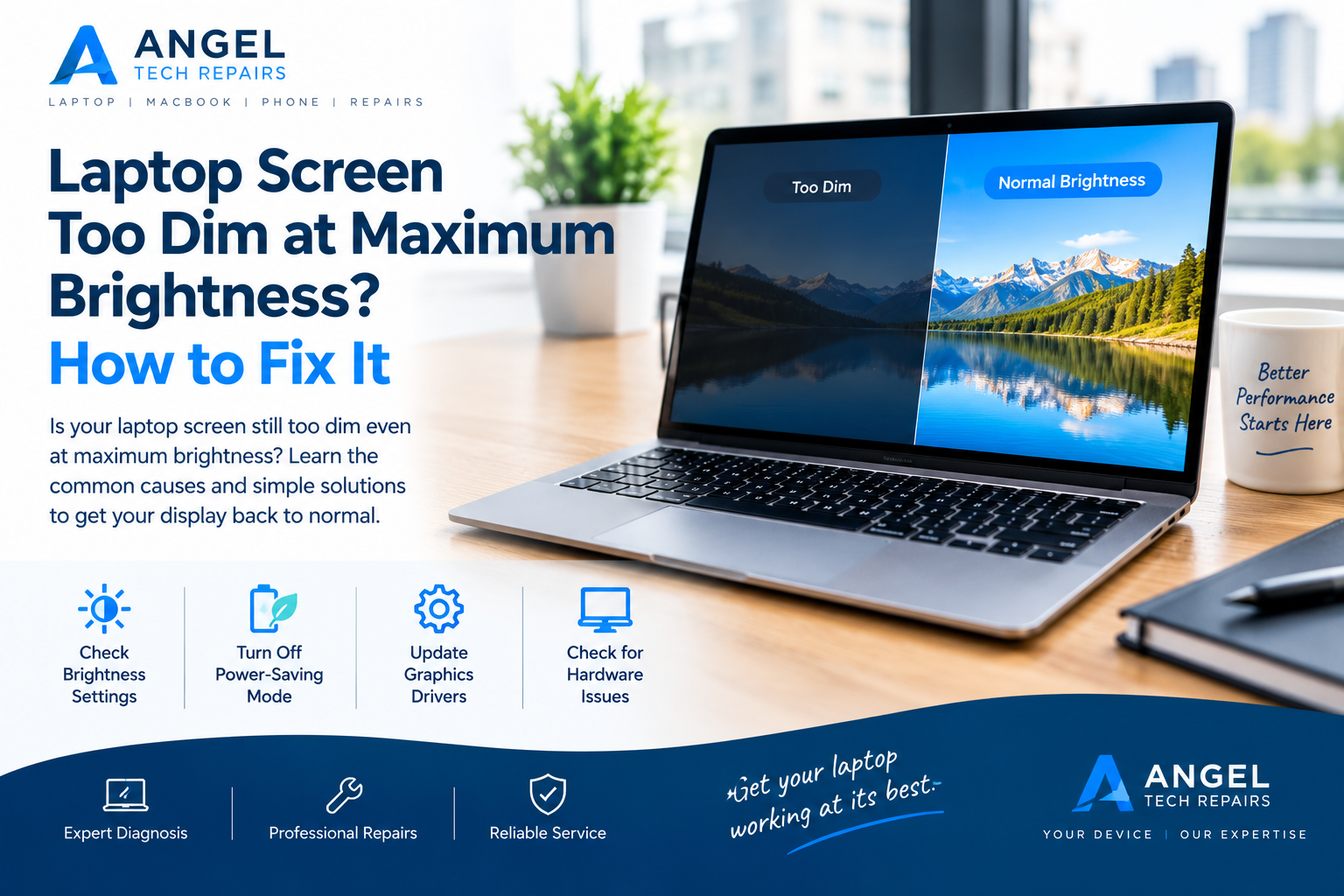
A laptop screen should be bright enough to read documents, browse websites, watch videos, and complete everyday tasks comfortably. However, sometimes the display remains too dim even when the brightness is set to maximum. This can make your laptop difficult to use, especially in a bright room or outdoor environment.
A dim laptop screen does not always mean the display is damaged. The problem may be caused by incorrect brightness settings, battery-saving features, outdated graphics drivers, or a hardware fault. Identifying the cause can help you find the right solution without spending money on unnecessary repairs.
In this guide, we explain why your laptop screen may be too dim at maximum brightness and share practical steps to fix the problem.
Why Is Your Laptop Screen Too Dim at Maximum Brightness?
Several issues can affect your laptop’s screen brightness. Before replacing any components, it is worth checking the display settings and software.
1. Incorrect Display Brightness Settings
Sometimes, your laptop’s brightness settings may not work as expected because of a temporary software problem or an incorrect configuration.
Even if the brightness slider is at its highest level, other display settings may affect how bright the screen appears.
How to fix it:
- Open Settings on your Windows laptop.
- Select System, then Display.
- Check the brightness slider and make sure it is set to the maximum.
- If your laptop has a physical brightness key, use it to increase the brightness.
- Restart your laptop and check whether the display improves.
If the brightness remains low, continue with the following troubleshooting steps.
2. Battery Saver or Power-Saving Mode Is Enabled
Power-saving features help extend battery life by reducing energy consumption. Depending on your laptop model and settings, these features may reduce screen brightness or change display behaviour.
If your screen becomes dimmer when you unplug the charger, a power-related setting could be responsible.
How to fix it:
- Open Windows Settings.
- Select System, then Power and battery.
- Check whether Energy Saver or Battery Saver is enabled.
- Temporarily turn it off and see whether the screen becomes brighter.
- Check your manufacturer’s power-management application for additional display settings.
The exact options depend on your laptop model and Windows version. If disabling power-saving features makes no difference, another issue may be responsible.
3. Adaptive Brightness Is Changing the Display
Some laptops use an ambient light sensor to adjust screen brightness automatically. Other devices may have content-adaptive brightness features that change brightness or contrast depending on what appears on the screen.
These features can sometimes make the display look darker than expected.
How to fix it:
- Open Settings and select System, then Display.
- Look for automatic brightness or adaptive brightness options.
- If available, turn off automatic brightness adjustment temporarily.
- Check for an option that changes brightness based on displayed content and disable it if necessary.
- Test the screen again.
Not every laptop supports these features, so you may not see the same settings on your device.
4. Graphics Driver Problems
Graphics drivers help your operating system communicate with the laptop’s display hardware. If a driver becomes outdated, corrupted, or incompatible with a recent update, you may experience brightness-control problems or unusual display behaviour.
How to fix it:
- Right-click the Start button.
- Open Device Manager.
- Expand Display adapters.
- Right-click your graphics adapter and select Update driver.
- Follow the instructions if an appropriate update is available.
You can also check Windows Update or your laptop manufacturer’s official support website for compatible graphics drivers.
If the problem began immediately after a driver update, a compatible previous driver may help. Avoid downloading drivers from unfamiliar websites.
5. Your Laptop Display Is in a Power-Saving Profile
Some laptops include manufacturer-specific software that controls performance, battery usage, and display settings. A quiet, balanced, or battery-saving profile may change how your screen behaves.
For example, your laptop may automatically switch to a more energy-efficient mode when running on battery power.
How to fix it:
- Open your laptop manufacturer’s control application, if one is installed.
- Check the power or performance profile.
- Select a suitable balanced or performance setting for testing.
- Compare the brightness when the charger is connected and disconnected.
Keep in mind that changing the power profile may increase energy consumption and reduce battery runtime.
6. The Screen Is Too Dim Because of HDR or Colour Settings
High Dynamic Range (HDR), colour profiles, and other display settings can sometimes make the desktop or certain applications look darker than expected.
This is more likely when the problem started after changing display settings or connecting an external monitor.
How to fix it:
- Open Settings and select System, then Display.
- If your laptop supports HDR, check the HDR settings.
- Temporarily turn HDR off to see whether the display looks more natural.
- Check whether a custom colour profile or graphics utility is affecting the display.
- Restore the default display settings if you recently changed them.
HDR settings are not available on every laptop. If your screen remains dim across the entire system, consider checking for a hardware problem as well.
What If Your Laptop Screen Is Still Dim?
If you have checked the brightness settings and updated the relevant software but the screen is still too dark, the problem may be related to the display hardware.
1. A Failing Laptop Screen
Laptop displays can develop faults over time. Damage, internal component failure, or deterioration of display-related components may cause the screen to become unusually dim.
Possible warning signs include:
- The screen remains dark even at maximum brightness.
- Brightness changes do not produce a noticeable difference.
- Parts of the display appear darker than others.
- The screen flickers or displays unusual colours.
- The display has recently suffered an impact or liquid damage.
If these symptoms occur, a professional inspection can help determine whether the screen needs repair or replacement.
2. A Faulty Backlight
Many laptop screens use a backlight to illuminate the displayed image. If the backlight or its associated circuitry develops a fault, the screen may become extremely dim even though the laptop is still running.
A useful observation is whether you can faintly see the desktop or login screen when shining a flashlight at an angle onto the display. If an image is visible but the screen itself is barely illuminated, a backlight-related problem may be possible.
This test is not definitive, and the cause can vary depending on the type of display. Modern laptops may use different display technologies, including OLED panels that do not rely on a conventional LCD backlight.
A technician can test the display and determine whether the fault involves the screen, its power supply, or another component.
3. A Loose or Damaged Display Cable
The display cable connects the laptop’s screen to the internal hardware. If it becomes damaged or its connection develops a fault, the display may show unusual brightness, flickering, or other visual problems.
You might notice that the display changes when the laptop lid moves. Do not repeatedly flex the screen to reproduce the issue, as this could make the problem worse.
If the screen flickers, becomes dim at certain lid angles, or behaves inconsistently, professional diagnosis is recommended.
4. A Motherboard or Display Power Fault
In some cases, the problem may involve the circuitry responsible for supplying power to the display or controlling brightness.
These faults are more difficult to identify without specialist equipment. A technician may need to test the display, cable, and related circuitry before deciding which component requires repair.
Replacing the screen without identifying the underlying cause may not resolve the problem.
How to Check Whether Your Laptop Screen Needs Repair
You can perform a few basic checks to help identify whether the issue is software-related or hardware-related.
Step 1: Restart your laptop.
A restart can resolve temporary software issues that affect display brightness.
Step 2: Check the brightness controls.
Use Windows display settings and your laptop’s brightness keys. Confirm that automatic brightness or power-saving features are not reducing brightness unexpectedly.
Step 3: Connect the charger.
Check whether the display becomes brighter when the laptop is plugged in. If it does, review the power and battery settings.
Step 4: Check the display before Windows loads.
If the screen is also unusually dim in the BIOS or UEFI settings, that can point towards a hardware issue, although it does not prove one. Access methods vary by manufacturer, and you should avoid changing unfamiliar BIOS settings.
Step 5: Test an external monitor.
If possible, connect your laptop to an external monitor. If the external display looks normal while the built-in screen remains dim, the problem may be related to the laptop’s screen, display cable, or associated hardware.
However, graphics settings and other faults can also affect the results, so this test is not conclusive.
Can You Fix a Dim Laptop Screen Yourself?
Some brightness problems can be fixed at home. Adjusting display settings, disabling an unnecessary power-saving feature, restarting the laptop, and updating a compatible graphics driver are reasonable first steps.
However, internal hardware repairs require more care.
Avoid opening the laptop to inspect the display cable or backlight unless you have the necessary technical knowledge and tools. Incorrect handling can damage delicate connectors and other internal components.
If your laptop screen remains dim after basic troubleshooting, professional diagnosis can help prevent unnecessary part replacements.
When Should You Contact a Laptop Repair Specialist?
Consider professional laptop repair if:
- Your screen remains too dim at maximum brightness.
- The brightness controls no longer work correctly.
- The screen flickers or has uneven illumination.
- The display becomes dim when the laptop lid moves.
- A flashlight test suggests that an image is present but the display is not properly illuminated.
- The laptop has suffered physical damage or liquid exposure.
- Software troubleshooting has not resolved the issue.
A repair specialist can inspect the display panel, cable connections, backlight system where applicable, and related circuitry to identify the cause.
If you need help with a dim laptop screen, Angel Tech Repairs is an option to explore for laptop repair services in London. Contact the team to discuss your laptop model, describe the symptoms, and confirm the available repair options.
Final Thoughts
A laptop screen that remains too dim at maximum brightness can be frustrating, but the problem does not always require a new display. Incorrect power settings, automatic brightness features, graphics driver issues, and HDR settings can all affect how bright the screen appears.
Start with simple software checks and compare the display while running on battery power and while connected to the charger. If the screen remains dim, flickers, or shows other unusual symptoms, a hardware fault may be responsible.
Getting the issue diagnosed early can help you choose the right repair and avoid spending money on parts you do not need.
For laptop screen repair information and other computer repair services in London, visit Angel Tech Repairs.
If it needs a technician, our laptop repair in Islington page explains what we fix and how the free quote works, or you can book a repair online.