
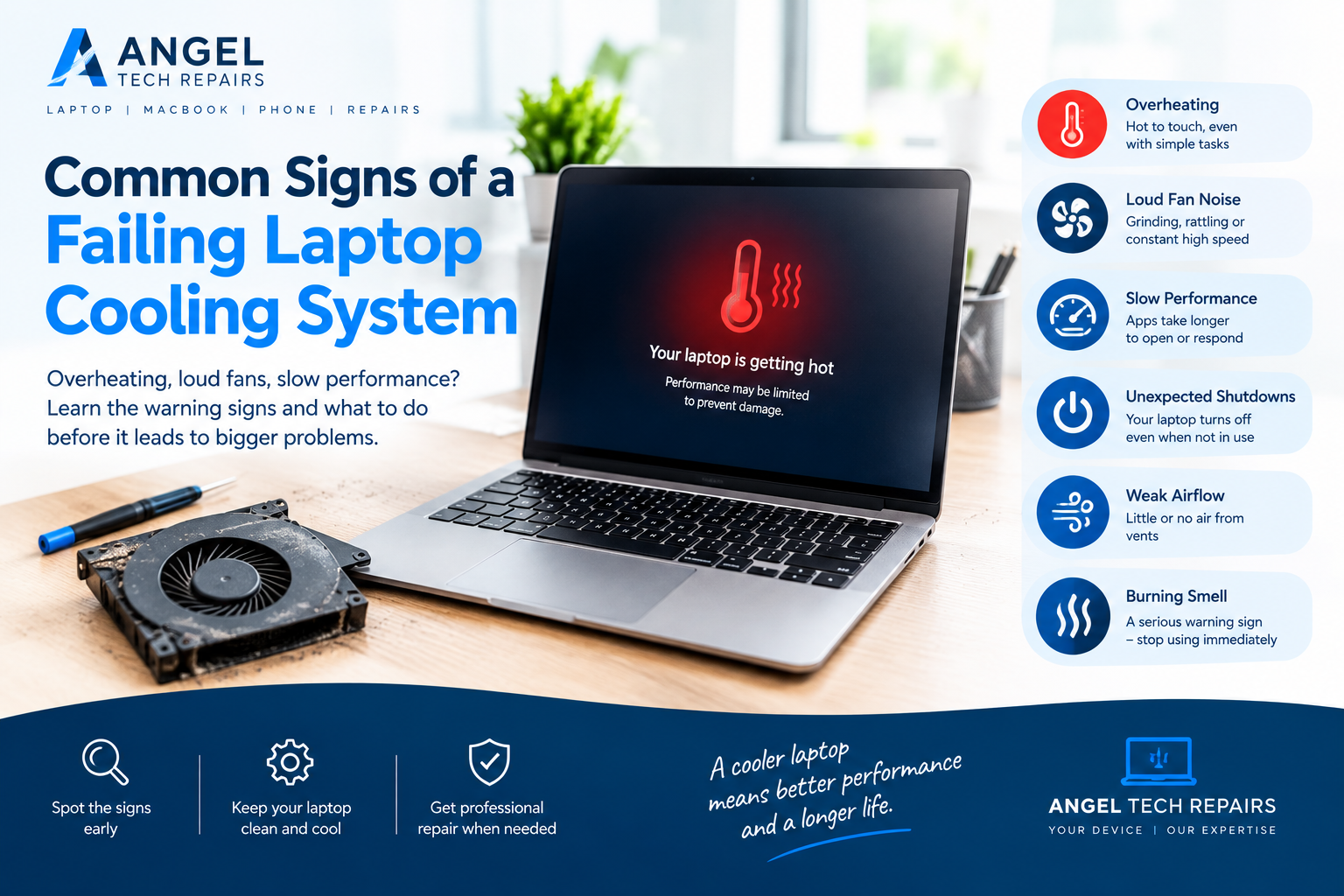
Common Signs of a Failing Laptop Cooling System
Introduction
A laptop cooling system plays an important role in keeping your device running smoothly. It helps control the heat produced by internal components such as the processor (CPU) and graphics processor (GPU). When the cooling system works properly, your laptop can handle everyday tasks without becoming excessively hot.
However, if the cooling fan stops working, dust blocks the air vents, or heat cannot move away from internal components efficiently, your laptop may start overheating. This can affect performance, cause unexpected shutdowns, and potentially damage internal hardware if the problem continues.
Recognising the warning signs early can help you avoid expensive repairs and keep your laptop in good working condition.
In this guide, we explain the common signs of a failing laptop cooling system, what causes these problems, and when you should consider professional laptop repair.
1. Your Laptop Gets Excessively Hot
One of the most common signs of a cooling system problem is excessive heat.
It is normal for a laptop to become warm when running demanding applications, playing games, editing videos, or performing other intensive tasks. However, if your laptop becomes unusually hot during simple activities such as browsing the internet or writing documents, its cooling system may not be working efficiently.
You may notice excessive heat around the keyboard, underside, or areas near the ventilation openings.
Possible causes include:
- Dust and dirt blocking the cooling vents.
- A cooling fan that is damaged or not spinning correctly.
- Restricted airflow around the laptop.
- Problems with the heatsink or thermal interface material.
- Applications using unusually high CPU or GPU resources.
If your laptop repeatedly becomes excessively hot during light use, investigate the cause rather than ignoring the problem.
2. The Cooling Fan Makes Loud or Unusual Noises
Laptop fans usually become louder when the processor is working hard. For example, gaming, video editing, and software updates can increase the internal temperature, causing the fan to spin faster.
However, persistent loud fan noise can indicate a problem.
You might hear:
- Continuous high-speed fan noise.
- Grinding or rattling sounds.
- Clicking noises coming from the cooling area.
- A fan that repeatedly speeds up and slows down.
- Unusually loud noise even when only a few applications are open.
Dust buildup can restrict airflow and force the fan to work harder. Grinding or rattling sounds may indicate a damaged fan or an obstruction.
If the fan makes unusual mechanical noises, arrange an inspection. Continuing to use a laptop with a failing fan can allow heat to build up inside the device.
3. Your Laptop Becomes Slow During Everyday Tasks
A failing cooling system can affect laptop performance, even when the hardware is otherwise capable of handling your workload.
When the processor or graphics chip becomes too hot, the laptop may automatically reduce its operating speed to control the temperature. This process is called thermal throttling.
As a result, you may notice that:
- Applications take longer to open.
- Web browsing becomes less responsive.
- Games experience sudden drops in frame rates.
- Video editing takes longer than usual.
- The laptop slows down after several minutes of use.
Performance problems do not always mean the cooling system is failing. Low memory, storage issues, outdated software, and background applications can also cause slow performance.
However, if your laptop becomes noticeably slower as it heats up, the cooling system should be checked.
4. The Laptop Shuts Down Unexpectedly
Unexpected shutdowns can be another warning sign of overheating.
Modern laptops have built-in thermal protection mechanisms. When internal temperatures become too high, the system may reduce performance or shut down to protect its components.
You may notice that your laptop switches off while gaming, running demanding software, or performing tasks that require significant processing power.
If the laptop restarts or shuts down repeatedly, overheating could be the cause. However, battery faults, power problems, and other hardware issues can produce similar symptoms.
Allow the laptop to cool down, check that its vents are unobstructed, and avoid repeatedly restarting it if it continues to overheat. Persistent shutdowns require further diagnosis.
5. Little or No Air Comes from the Cooling Vents
Most laptops use fans to move air through internal cooling components and release heat through designated vents.
If airflow becomes weak or stops completely when the laptop is hot and the fan should be running, there may be a cooling problem.
Possible causes include:
- Dust blocking the vents or internal heatsink.
- A damaged or disconnected fan.
- A fan motor that has stopped working.
- An obstruction preventing the fan from moving freely.
Keep in mind that some laptops have fanless cooling designs, and many others stop their fans when internal temperatures are low. Therefore, a fan that is not running is not automatically a sign of failure.
If your laptop becomes very hot and the cooling fan does not appear to operate when needed, professional inspection is recommended.
6. The Laptop Feels Hot Even When Idle
A laptop should not normally remain excessively hot when performing very little work.
If the device becomes hot while sitting on the desktop with no demanding applications open, it may be experiencing a background software problem or a hardware cooling issue.
An application could be using excessive processing power, or dust and restricted airflow could be preventing the cooling system from removing heat effectively.
You can check running applications through Task Manager in Windows:
- Press Ctrl + Shift + Esc.
- Open the Processes section.
- Review CPU usage and identify applications consuming unusually high resources.
- Close applications you recognise and no longer need.
Do not end unfamiliar system processes without understanding their purpose. If resource usage appears normal but the laptop remains excessively hot, the cooling system may need professional attention.
7. The Laptop Freezes or Restarts During Heavy Use
Overheating can sometimes cause system instability.
For example, your laptop might freeze during a gaming session, become unresponsive while editing a video, or restart while running demanding software.
When internal components become too hot, performance may become unstable. However, freezing and restarting can also result from faulty RAM, storage problems, software conflicts, or power issues.
Pay attention to whether the problem occurs after the laptop has been running for some time or during activities that generate more heat.
If freezing repeatedly occurs alongside excessive heat or loud fan noise, have the device checked to identify the underlying cause.
8. You Notice a Burning Smell or Other Serious Warning Signs
A burning smell, smoke, or unusual electrical noises should never be ignored.
These symptoms may indicate an electrical fault, damaged component, or another safety-related problem rather than a cooling issue alone.
If you notice smoke, a burning smell, or signs of electrical damage, stop using the laptop immediately. Disconnect the power only if it is safe to do so, and do not continue switching the device on to test it.
Keep away from a device that is smoking or showing signs of a dangerous battery fault. Seek appropriate professional assistance, and contact emergency services if there is an immediate fire risk.
What Causes Laptop Cooling System Problems?
Understanding the common causes can help you take better care of your laptop.
Dust and Dirt Buildup
Dust, hair, and debris can accumulate inside the laptop and restrict airflow through the fan and heatsink. This makes it harder for the cooling system to remove heat.
Cleaning the external vents may help when dust is accessible, but heavy internal buildup may require professional cleaning.
A Worn or Damaged Cooling Fan
Laptop fans contain moving parts that can wear out or become damaged. A failing fan may produce unusual noises, operate intermittently, or stop working.
If the fan is faulty, cleaning alone may not solve the problem. Replacement may be necessary.
Blocked Air Vents
Using a laptop on a bed, blanket, cushion, or other soft surface can block ventilation openings on some models.
Place your laptop on a firm, flat surface and keep its vents clear. This simple change can improve airflow and reduce unnecessary heat buildup.
Deteriorated Thermal Interface Material
Thermal paste and thermal pads help transfer heat from certain components to the cooling system. Over time, some thermal interface materials may deteriorate or become less effective.
If heat transfer is poor, internal temperatures may rise even when the fan is running.
A technician can determine whether the thermal interface material needs attention and use components suitable for the specific laptop model.
High Processor Usage
Demanding applications, multiple background processes, and some software problems can cause the CPU or GPU to work harder than expected.
The resulting heat may make the cooling fan run faster. Before assuming the hardware is faulty, check whether an application is consuming excessive resources.
How to Prevent Laptop Cooling Problems
Good maintenance can help reduce the risk of overheating and extend the useful life of your laptop.
Here are some practical tips:
- Keep the vents clear: Avoid placing your laptop on soft surfaces that block airflow.
- Clean external vents carefully: Follow the manufacturer’s cleaning instructions and avoid inserting objects into the ventilation openings.
- Manage demanding applications: Close programs you no longer need and check for unusually high CPU usage.
- Keep software updated: Install appropriate operating system and driver updates from trusted sources.
- Avoid excessive heat: Do not leave your laptop in direct sunlight or inside a hot vehicle.
- Arrange periodic maintenance: Consider professional cleaning if dust buildup or cooling problems develop.
- Respond to unusual symptoms: Do not ignore persistent overheating, abnormal fan noise, or unexpected shutdowns.
Avoid opening the laptop or attempting internal repairs unless you have the necessary skills and equipment. Internal components can be damaged by incorrect handling.
Can a Failing Cooling System Damage Your Laptop?
Yes, persistent cooling problems can affect laptop performance and increase the risk of hardware damage.
Although modern laptops include protective features that reduce performance or shut down when temperatures become excessive, these protections should not be treated as a substitute for proper cooling.
Repeated overheating may contribute to system instability and place additional stress on internal components. If the cooling fan has failed or airflow is severely restricted, the laptop may not be able to manage heat effectively.
Addressing the problem early can help prevent further complications and reduce the chance of a more expensive repair.
When Should You Get Professional Laptop Repair?
Basic troubleshooting may help if the problem is caused by blocked external vents, demanding applications, or poor ventilation. However, some cooling problems require specialist attention.
Consider professional laptop repair if:
- Your laptop repeatedly overheats during light use.
- The cooling fan makes grinding or rattling noises.
- The fan does not work when cooling is needed.
- Your laptop shuts down unexpectedly because of heat.
- Performance drops significantly as the device warms up.
- Cleaning external vents does not improve the problem.
A technician can inspect the cooling fan, heatsink, internal vents, and thermal interface materials. They can also check whether software or another hardware fault is contributing to the symptoms.
If your laptop needs a fan replacement, internal cleaning, or further diagnosis, Angel Tech Repairs is an option to explore for laptop repair services in London. Contact the team to confirm the services available for your laptop model and discuss the symptoms you are experiencing.
Final Thoughts
A failing laptop cooling system can cause excessive heat, loud fan noise, slow performance, freezing, and unexpected shutdowns. These warning signs should not be ignored, especially when several occur together.
Start by keeping the vents clear, using your laptop on a suitable surface, and checking whether applications are placing an unusually heavy load on the processor. If the problem continues, a professional inspection can help identify whether the fan, heatsink, or another component needs attention.
Taking action early can help maintain your laptop’s performance, protect important components, and reduce the risk of further damage.
For laptop repair advice and service information in London, visit Angel Tech Repairs.
If it needs a technician, our laptop repair in Islington page explains what we fix and how the free quote works, or you can book a repair online.