

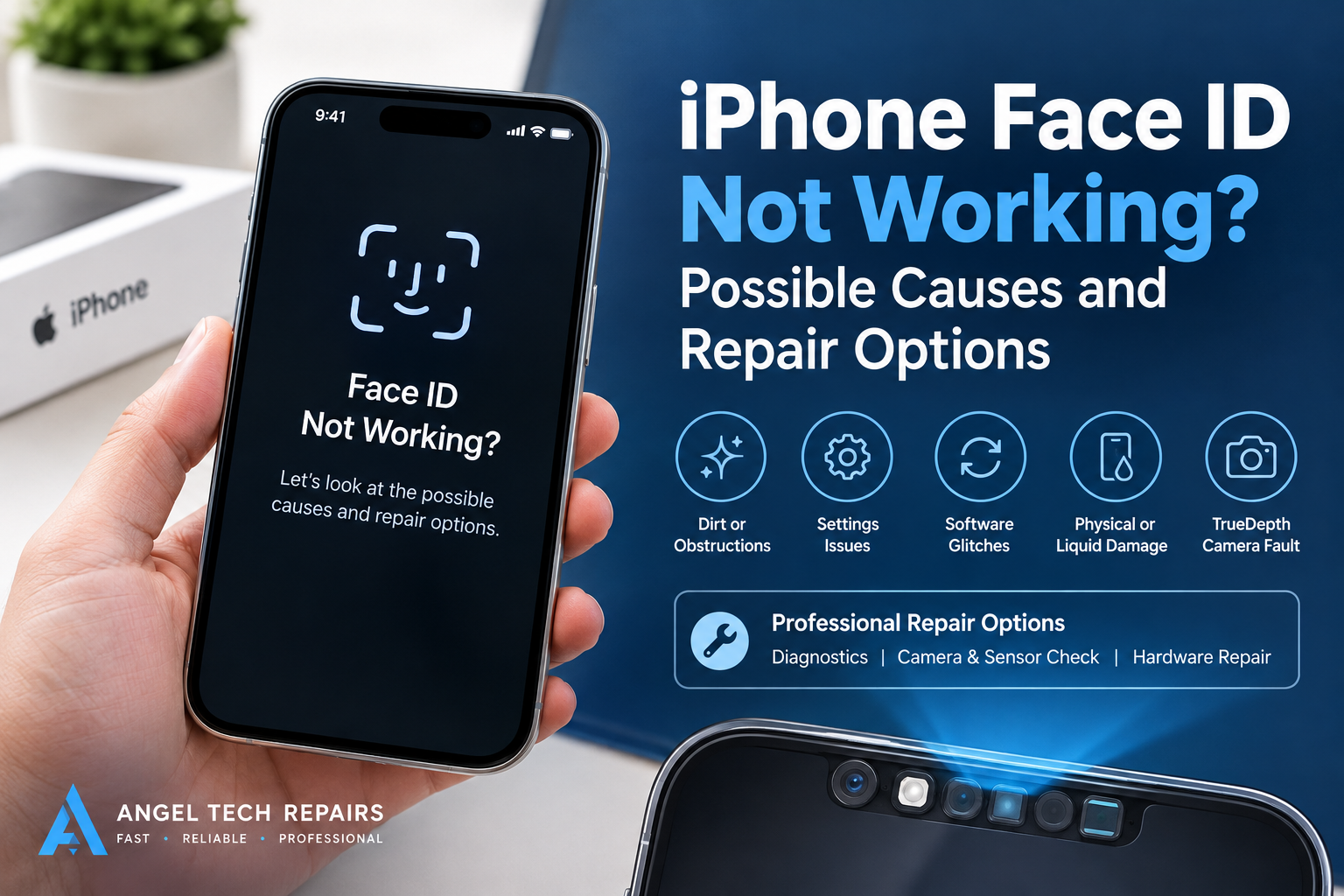
iPhone Face ID Not Working? Possible Causes and Repair Options
Introduction
Face ID is one of the most useful features on an iPhone. It allows you to unlock your device, approve payments, sign in to apps, and protect your personal information without entering a passcode every time. However, if Face ID suddenly stops working, it can become frustrating, especially when you rely on your iPhone throughout the day.
There are several reasons why Face ID may stop working, including incorrect settings, software issues, a dirty front camera area, or damage to the phone’s TrueDepth camera system. Understanding the possible cause can help you decide whether you can fix the problem yourself or need professional iPhone repair services.
In this guide, we will explain the common reasons Face ID stops working, practical troubleshooting steps, and the repair options available.
What Is Face ID and How Does It Work?
Face ID is Apple’s facial recognition technology used on supported iPhone models. It relies on the TrueDepth camera system, which projects and analyses infrared patterns to recognise your face.
When you look at your iPhone, the system checks your facial features and compares them with the securely stored facial data on your device. If the information matches, your iPhone unlocks or approves the requested action.
Because Face ID depends on specialised hardware and software, problems with either component can affect its performance.
Common Reasons Why iPhone Face ID Stops Working
1. Dirt or Obstructions Around the Front Camera
One of the simplest reasons Face ID may not work correctly is an obstruction around the front camera area. Dust, fingerprints, screen protectors, or poorly fitted cases can interfere with the TrueDepth camera system.
How to fix it:
- Clean the top front area of your iPhone with a soft, lint-free cloth.
- Check whether your case covers any part of the camera or sensor area.
- Make sure your screen protector is correctly fitted and does not obstruct the sensors.
- Try using Face ID again in a well-lit environment, without anything covering your face.
If Face ID starts working after removing the obstruction, a repair may not be necessary.
2. Face ID Settings Are Incorrect
Sometimes, Face ID is working properly, but certain settings prevent it from functioning as expected. For example, Face ID may not be enabled for unlocking the phone or authenticating purchases.
How to check your settings:
- Open Settings on your iPhone.
- Select Face ID & Passcode.
- Enter your passcode when requested.
- Check that iPhone Unlock and the other features you want to use are enabled.
If Face ID has stopped recognising your face, you can also select the option to reset Face ID and set it up again, provided your device allows you to do so.
3. A Software Glitch or iOS Update Problem
Temporary software errors can affect Face ID performance. You may notice the issue after an iOS update, a restart, or when certain system features are not responding correctly.
Possible solutions include:
- Restart your iPhone.
- Check for available iOS updates under Settings > General > Software Update.
- Follow the on-screen instructions if your iPhone requires its passcode before Face ID can be used again.
- Reset Face ID and complete the setup process again if the option is available.
If the problem continues after these steps, the issue may require further diagnosis.
4. Face ID Is Not Available After a Drop or Water Exposure
Accidental drops and liquid exposure can damage delicate internal components. Even if your iPhone screen remains intact, the TrueDepth camera system or its connections may have been affected.
Common warning signs include:
- Face ID stopped working immediately after a drop.
- The phone displays a message saying Face ID is unavailable.
- The front camera or other related features are also malfunctioning.
- Face ID cannot be configured again after resetting it.
If you suspect physical or liquid damage, avoid opening the device yourself. A qualified technician can inspect the phone and determine whether a component has been damaged.
5. Problems With the TrueDepth Camera System
Face ID relies on multiple specialised components, including an infrared camera, a dot projector, and other sensors. If a component fails, facial recognition may stop working completely.
You might see a message such as “Face ID is not available” or be unable to complete the Face ID setup process.
This type of problem is more complicated than a basic settings issue. Professional diagnostics may be necessary to identify the affected component and determine whether a repair is possible.
6. Face ID Stops Working After a Screen Replacement
If Face ID stops working after an iPhone screen replacement, the repair process may be related to the problem. The TrueDepth camera and associated components require careful handling during repairs.
Possible causes include an obstructed sensor area, incorrectly fitted components, damaged flex cables, or other hardware issues.
Not every screen replacement causes Face ID problems. However, if the feature worked before the repair and stopped immediately afterwards, return to the repair provider for an inspection.
When choosing an iPhone screen replacement service, look for technicians who understand the device’s camera and sensor systems and can explain any limitations before beginning the work.
How to Troubleshoot iPhone Face ID at Home
Before booking a repair, try these basic troubleshooting steps.
Step 1: Clean the front camera area. Remove fingerprints and check for obstructions around the sensors.
Step 2: Restart your iPhone. A restart can resolve temporary software issues.
Step 3: Check Face ID settings. Confirm that Face ID is enabled for the features you use.
Step 4: Update iOS. Install an available update if your device supports it and you can do so safely.
Step 5: Set up Face ID again. Go to Settings > Face ID & Passcode and choose Reset Face ID, then follow the setup instructions.
If you cannot set up Face ID again, or the device reports that Face ID is unavailable, professional diagnosis may be the next step.
Keep in mind that an iPhone may require its passcode after restarting or under certain security conditions. This does not necessarily mean Face ID is damaged.
Professional iPhone Face ID Repair Options
If basic troubleshooting does not resolve the issue, the appropriate repair depends on the cause and the iPhone model.
Software Diagnosis
A technician can investigate software-related problems and check whether settings, system errors, or other software issues are affecting Face ID.
Camera and Sensor Inspection
A repair specialist can examine the TrueDepth camera area and related components for signs of damage, obstruction, or a connection problem.
Hardware Repair
If a hardware fault is identified, the technician can explain the available repair options. Face ID components are security-sensitive and model-specific, so not every damaged component can be replaced independently while preserving Face ID functionality.
Post-Repair Inspection
If Face ID stopped working after a screen or other hardware repair, the device may need to be inspected for installation problems or component damage. A reputable repair service should explain the findings before recommending additional work.
How Much Does iPhone Face ID Repair Cost?
The cost of repairing Face ID depends on the iPhone model, the cause of the problem, the parts involved, and whether the issue can be resolved through troubleshooting or requires hardware work.
A simple settings issue may not require a paid repair. Hardware problems involving the TrueDepth camera system can be more expensive and may require specialised service.
Before approving a repair, ask for a diagnostic assessment and a clear quotation. You should also confirm whether the proposed repair is expected to restore Face ID, whether any features may remain unavailable, and what warranty applies to the work.
How to Prevent Future Face ID Problems
Although not every hardware failure can be prevented, a few simple habits may reduce the risk of damage.
- Use a suitable protective case to reduce damage from accidental drops.
- Keep the front camera and sensor area clean.
- Choose screen protectors designed for your iPhone model.
- Keep your iPhone’s software updated.
- Avoid exposing your device to liquids, even if it has some water resistance.
- Use a qualified repair provider for screen replacements and other hardware work.
If your iPhone has been dropped or exposed to liquid, getting it checked promptly may help prevent further damage.
When Should You Visit an iPhone Repair Shop?
You should consider professional help if Face ID remains unavailable after basic troubleshooting, cannot be set up again, or stopped working following physical damage or a previous repair.
You should also seek an inspection if the front camera has developed other problems or your iPhone displays a persistent Face ID error.
A professional technician can assess the device, explain the likely cause, and recommend an appropriate solution without replacing parts unnecessarily.
Conclusion
When iPhone Face ID stops working, the cause may be as simple as a dirty sensor area or an incorrect setting. In other cases, software problems, accidental damage, or a fault in the TrueDepth camera system may be responsible.
Start with basic troubleshooting, including cleaning the front camera area, checking your settings, restarting your device, and updating iOS. If the problem persists, professional diagnostics can help determine whether a repair is needed.
If you need assistance with an iPhone that will not recognise your face, choose a repair provider that understands Apple’s Face ID technology and can explain the available options clearly.
Need help with your iPhone? Visit Angel Tech Repairs to explore repair services and ask about diagnosing your device’s problem.