
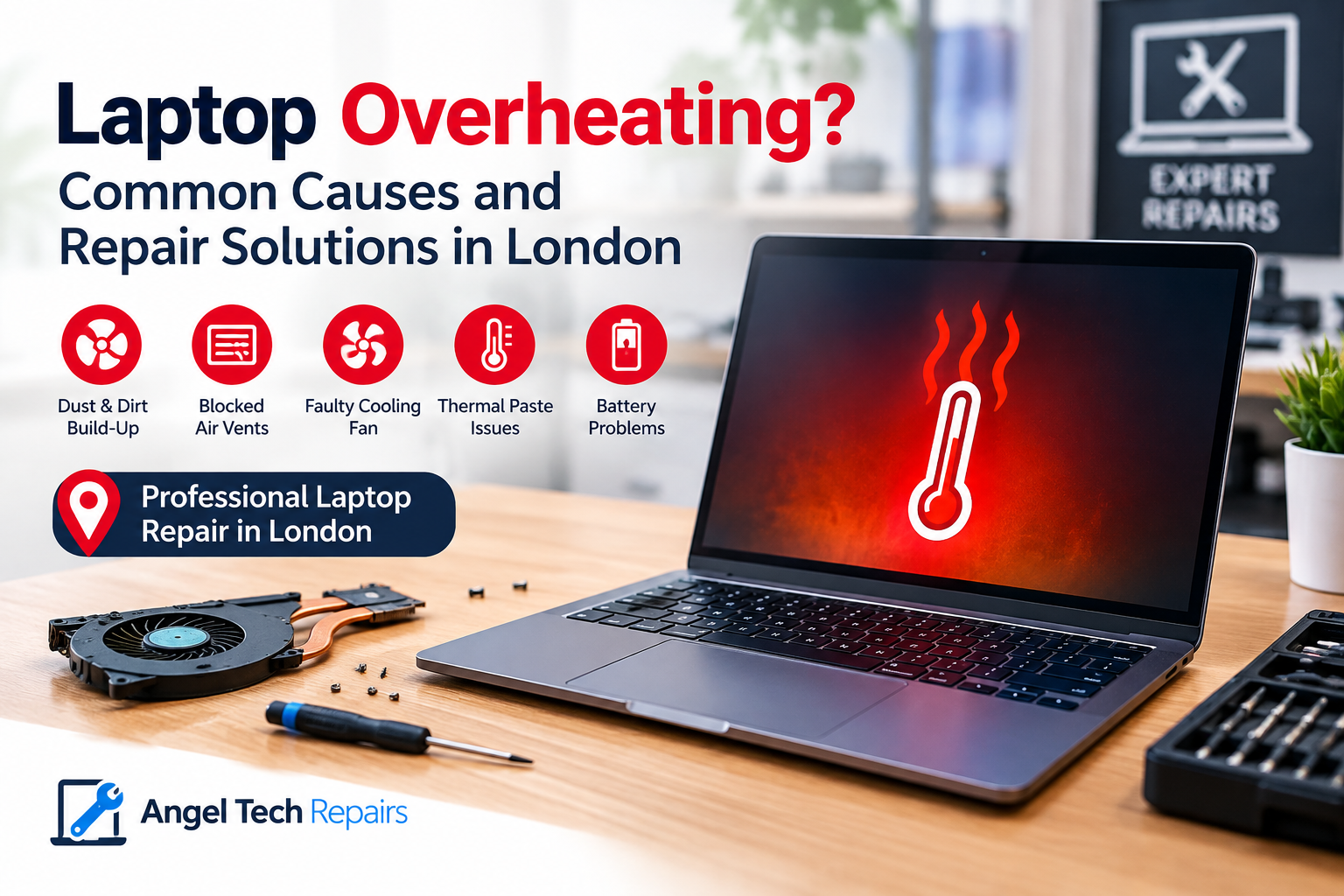
Laptop Overheating? Common Causes and Repair Solutions in London
Introduction
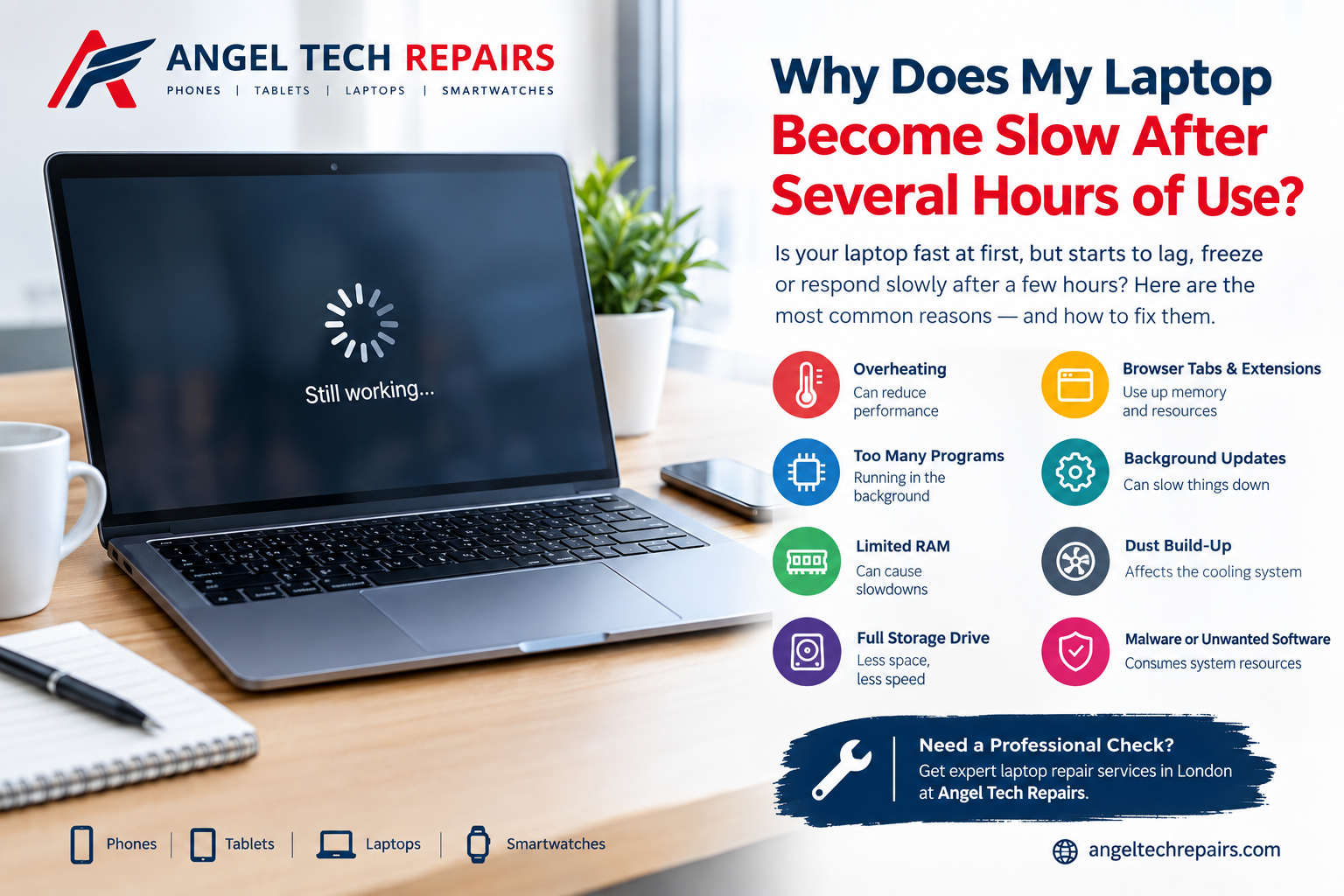
A laptop that becomes unusually hot, has a constantly loud fan, slows down during everyday tasks, or suddenly shuts down can be experiencing an overheating problem. While some warmth is normal—particularly during gaming, video editing, or other demanding tasks—persistent excessive heat should not be ignored.
Overheating can affect performance and, if the underlying problem is left unresolved, may contribute to hardware damage. Common causes include blocked air vents, dust accumulation, heavy background processes, failing cooling fans, degraded thermal paste, and battery-related problems.
If you’re looking for laptop overheating repair in London, understanding the possible causes can help you identify the problem early and know when professional repair is appropriate.
What Causes a Laptop to Overheat?
1. Dust and Dirt Build-Up
One of the most common causes of laptop overheating is dust accumulating inside the cooling system.
Over time, dust can collect around the fan, heatsink and ventilation paths. This can restrict airflow and prevent heat from escaping efficiently. The fan may then have to work harder, resulting in increased noise and higher internal temperatures.
Regular professional cleaning can help maintain proper airflow and cooling performance.
2. Blocked Air Vents
Using a laptop on a bed, sofa, carpet or other soft surface can obstruct its ventilation openings. Even when the cooling fan is functioning correctly, restricted airflow can cause temperatures to rise.
For everyday use, place your laptop on a firm, flat surface and keep its vents unobstructed.
3. Faulty or Worn Cooling Fan
The cooling fan plays an essential role in moving hot air away from internal components. A fan that is damaged, obstructed, unusually noisy or failing to spin properly may not provide sufficient cooling.
Typical warning signs include:
- Loud or unusual fan noise
- Fan running almost constantly
- Laptop becoming very hot during light use
- Sudden performance drops
- Unexpected shutdowns
A faulty fan may need to be cleaned or replaced, depending on its condition.
4. Dried or Degraded Thermal Paste
Thermal paste helps transfer heat from processors such as the CPU and GPU to their heatsinks. Over time, thermal paste can lose effectiveness.
When heat transfer becomes less efficient, temperatures can rise even though the fan appears to be working normally. A technician can inspect the cooling system and, where appropriate, remove the old thermal compound and apply new thermal paste.
5. Heavy CPU or GPU Usage
Sometimes the cooling system isn’t the primary problem. Your laptop may simply be working extremely hard.
Gaming, video editing, 3D applications, large software builds and other demanding workloads can generate substantial heat. Background applications, updates, antivirus scans and other processes can also increase CPU usage.
Windows users can open Task Manager and check which applications are consuming significant CPU, memory or GPU resources. High processor usage can increase fan activity and heat output.
6. Ageing or Faulty Battery
Battery problems can sometimes be associated with excessive heat, particularly when a battery is old or damaged.
If you notice unusual swelling, deformation, smoke, a burning smell, hissing or other signs of battery damage, stop using the laptop and seek professional assistance. Damaged lithium-ion batteries can present a serious safety risk.
Common Signs Your Laptop Is Overheating
Not every warm laptop has a serious fault, but several symptoms can indicate that your device needs attention.
Watch out for:
- Excessive heat around the keyboard or underside
- Fans running loudly or continuously
- Laptop becoming hot during light tasks
- Sudden slowdowns or performance throttling
- Unexpected restarts or shutdowns
- Applications crashing under load
- Battery draining unusually quickly
- Reduced performance while gaming or running demanding software
Microsoft notes that frequent or noisy fan operation, poor battery life and consistently high CPU, memory or disk usage can all be signs worth investigating when diagnosing declining PC performance.
Laptop Overheating Repair Solutions
The correct repair depends on the cause of the overheating.
Internal Laptop Cleaning
A professional technician can inspect and clean dust and debris from the cooling system, including fans and heatsinks. This can restore airflow and improve heat dissipation when contamination is the problem.
Laptop Fan Repair or Replacement
If the cooling fan is damaged or failing, cleaning alone may not solve the problem. A compatible replacement fan may be required.
Thermal Paste Replacement
Where degraded thermal compound is contributing to high temperatures, replacing the thermal paste can improve heat transfer between the processor and heatsink.
Battery Inspection and Replacement
If overheating is connected to a deteriorating battery, professional inspection can determine whether the battery should be replaced.
Battery repairs should be handled carefully because damaged or incorrectly installed lithium-ion batteries can overheat or create other safety hazards.
Software and Performance Checks
A technician can also investigate software-related causes, including excessive background processes, driver issues, power settings and applications that place unusually high demands on the processor.
What You Can Do to Prevent Laptop Overheating
A few simple habits can reduce unnecessary heat:
- Use your laptop on a hard, flat surface. Avoid blocking the ventilation openings.
- Keep air vents clean. Dust can restrict airflow over time.
- Avoid excessive workloads when cooling is inadequate. Demanding applications naturally generate more heat.
- Monitor unusual fan behaviour. A fan that suddenly becomes much louder or runs continuously may indicate an underlying problem.
- Keep your operating system and relevant drivers updated.
- Don’t ignore repeated shutdowns or severe overheating. These can indicate a hardware or cooling problem.
- Have older laptops professionally serviced. Internal cleaning and cooling-system inspection can help identify problems before they become more serious.
When Should You Get Professional Laptop Repair?
If your laptop is consistently overheating despite being used on a suitable surface, or if it is shutting down, throttling heavily or producing unusual fan noises, professional diagnosis is recommended.
Trying to disassemble a modern laptop without the correct tools and experience can potentially damage delicate components. Battery-related repairs also require particular care.
A professional laptop repair service can inspect the cooling system, fan, heatsink, thermal compound, battery and other relevant components to identify the underlying cause rather than simply treating the symptoms.
Laptop Overheating Repair in London
If your laptop is overheating, don’t wait until the problem results in unexpected shutdowns or more serious hardware issues.
Angel Tech Repairs provides laptop repair services for customers in London. Whether the issue is related to dust, cooling fans, thermal paste, battery problems or another hardware fault, professional diagnosis can help determine the appropriate solution.
For more information about laptop repair services, visit:
Final Thoughts
Laptop overheating can have many causes, from something as simple as blocked ventilation to a failing cooling fan, degraded thermal paste or a battery problem. Identifying the cause early can help protect your laptop’s performance and reliability.
If your laptop is regularly running hot, the fan is unusually loud, or the device is shutting down unexpectedly, consider having it professionally inspected rather than continuing to use it while the problem gets worse.
For laptop overheating repair in London, visit Angel Tech Repairs to find out more about available repair services.