
The Things You Should and Shouldn’t Do When Your Device Breaks
Introduction
Technology has a habit of failing at the worst possible moment.
Your phone slips out of your hand. Your laptop suddenly refuses to turn on. Your tablet gets splashed with water. A charging cable stops working. Or your screen develops a mysterious black line after a fall.
In moments like these, it’s tempting to search for a quick fix and start experimenting.
But when it comes to damaged electronics, the wrong quick fix can sometimes make the problem worse.
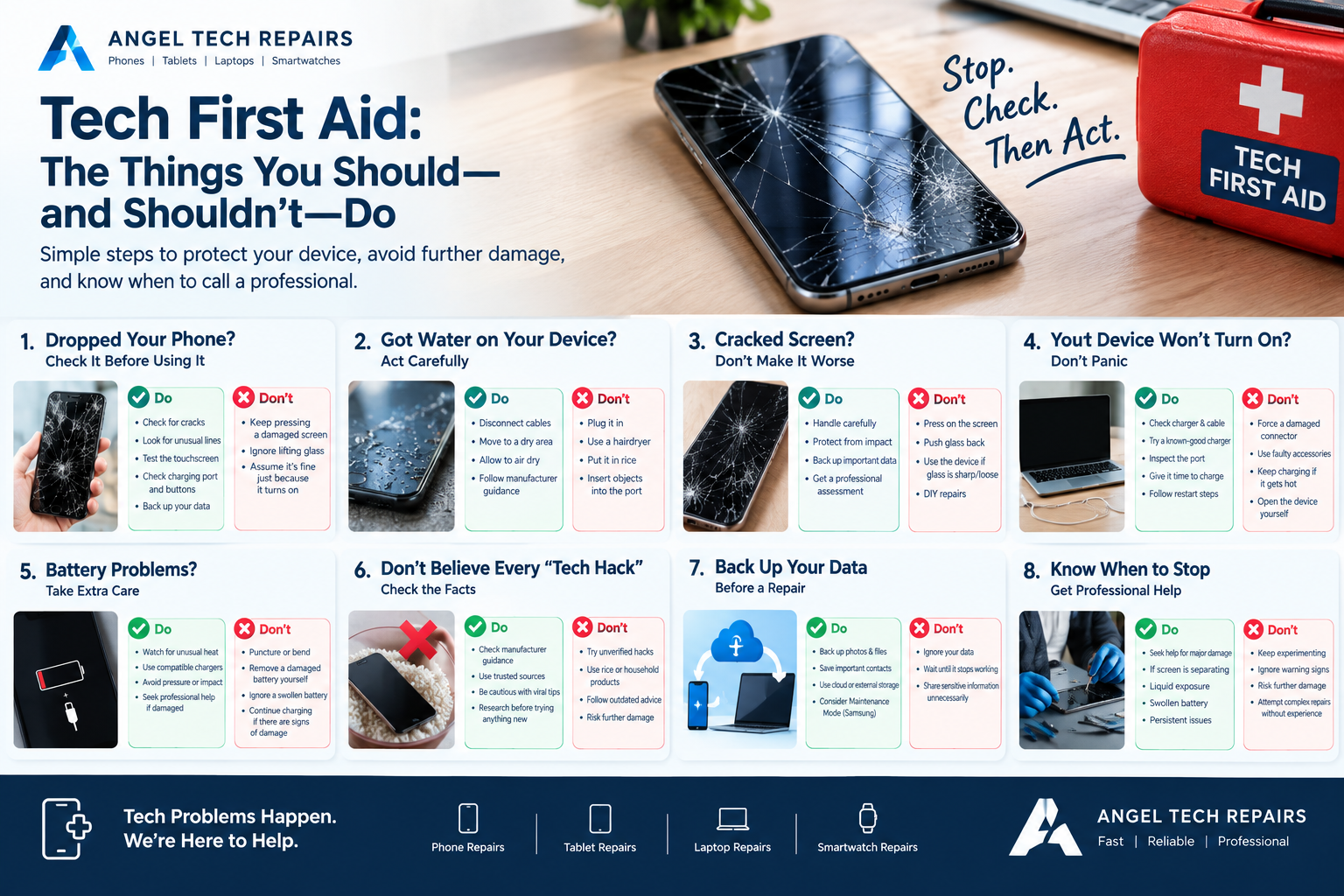
That’s why it’s useful to think of basic troubleshooting as tech first aid: take sensible steps to protect the device, avoid actions that could cause further damage, and know when it’s time to call a professional.
1. Dropped Your Phone? Check It Before Using It
A device can look fine after a fall while still having internal or display damage.
Samsung notes that physical impacts can result in cracked glass, black spots, abnormal lines and other display problems. Some internal display damage may occur even when the outer glass doesn’t appear severely damaged.
Do:
- Check the screen and body for cracks.
- Look for unusual lines, black spots or flickering.
- Test the touchscreen gently.
- Check whether the charging port and buttons still work normally.
- Back up important data if the device remains safe to use.
Don’t:
- Keep pressing a damaged screen.
- Ignore a screen that’s lifting away from the frame.
- Continue using a device with sharp or loose broken glass.
- Assume everything is fine simply because the phone turns on.
If the device has significant physical damage, professional inspection can help identify problems that aren’t immediately visible.
2. Got Water on Your Device? Act Carefully
Water and electronics are a bad combination.
If your phone becomes wet, the first instinct might be to plug it in and see whether it still works. That’s exactly what you should avoid.
Apple advises disconnecting cables from a wet iPhone and waiting until the device and connector are completely dry before reconnecting them. Apple also specifically warns against using external heat, compressed air or putting the phone in rice.
Do:
- Disconnect charging cables and accessories.
- Move the device to a dry area with airflow.
- Allow the charging port to dry naturally.
- Follow the manufacturer’s guidance for your specific device.
Don’t:
- Plug a wet device into a charger.
- Use a hairdryer or other external heat source.
- Push cotton buds, paper towels or objects into the charging port.
- Put the device in a bag of rice.
If liquid exposure has caused ongoing problems, professional assessment may be necessary.
3. Your Screen Is Cracked? Don’t Make It Worse
A cracked screen is one of the most common forms of device damage.
A small crack can be tempting to ignore, especially if the touchscreen still works. But physical damage can develop into display problems, including black spots or abnormal lines. Samsung recommends having damaged screens professionally inspected and repaired.
Do:
- Handle the device carefully.
- Protect it from additional impacts.
- Back up important information.
- Arrange a professional assessment if the damage is significant.
Don’t:
- Press hard on the damaged area.
- Try to push broken glass back into place.
- Continue using the device if the glass is sharp or loose.
- Attempt a screen replacement without the proper tools and experience.
Your screen is more than a piece of glass. It forms part of a complex assembly containing display and touch components.
4. Your Device Won’t Turn On? Don’t Panic
A device that won’t power on doesn’t automatically mean it’s beyond repair.
The problem could involve the battery, charger, charging port, software or another internal component.
Start with the simple checks.
Do:
- Check the charging cable and power adapter.
- Try a known-good compatible charger where appropriate.
- Inspect the charging port for obvious debris or damage.
- Give the device some time to charge.
- Follow the manufacturer’s recommended restart procedure.
Don’t:
- Force a damaged connector into the charging port.
- Use visibly damaged charging accessories.
- Keep charging a device that becomes unusually hot.
- Open the device unless you have the appropriate technical knowledge.
If basic troubleshooting doesn’t work, professional diagnosis can determine what’s actually causing the problem.
5. Battery Problems Need Extra Attention
Batteries are among the most important components in modern electronics—and one area where caution matters.
If you notice unusual heat, swelling, a lifting screen or other physical changes around the battery area, stop using the device and seek professional assistance.
Samsung’s safety guidance advises taking a device to a service centre if you suspect damage to the device or battery.
Do:
- Pay attention to unusual heat or physical changes.
- Use compatible charging equipment.
- Keep damaged devices away from unnecessary pressure or impact.
- Seek professional assistance when battery damage is suspected.
Don’t:
- Puncture, squeeze or bend a battery.
- Attempt to remove a damaged battery yourself.
- Continue charging a device that shows signs of serious physical battery damage.
- Ignore a screen or back cover that suddenly begins separating from the device.
Battery-related problems are not the right place for trial-and-error repairs.
6. Don’t Believe Every “Tech Hack” You See Online
The internet is full of repair tips.
Some are useful. Others are outdated, incomplete or simply unsuitable for modern electronics.
Rice is a classic example. It sounds logical that rice might absorb moisture, but Apple explicitly advises against putting a wet iPhone in rice because particles can potentially damage the connector.
Before trying a viral repair trick, check whether the manufacturer actually recommends it.
A few minutes of research can prevent hours of unnecessary troubleshooting—and potentially save your device from further damage.
7. Back Up Your Data Before a Repair
One of the most useful pieces of tech first aid isn’t actually about repairing hardware.
It’s about protecting what’s stored on your device.
Photos, contacts, documents, messages and other personal information can be difficult or impossible to recover if a device fails completely.
Whenever your device is still functioning and safe to use, consider backing up important information before arranging a repair.
Samsung, for example, advises customers to protect their personal information before submitting a device for service and provides a Maintenance Mode designed to restrict access to personal data during repairs.
8. Know When to Stop Troubleshooting
Basic troubleshooting is useful—but there’s a point where experimenting becomes counterproductive.
Consider professional help if:
- Your device has significant physical damage.
- The screen is cracked or separating.
- The device has been exposed to liquid.
- The battery appears swollen or damaged.
- The phone or laptop becomes unusually hot.
- The device repeatedly shuts down.
- Charging problems continue after basic checks.
- Important hardware functions have stopped working.
- You’ve tried the manufacturer’s recommended troubleshooting steps without success.
A professional technician can inspect the device, identify the likely cause and explain the available repair options.
Tech First Aid: The Golden Rule
When something goes wrong with your technology, remember three simple steps:
Stop. Check. Then Act.
Don’t immediately reach for a hairdryer, rice, screwdriver or random online hack.
First, determine what happened. Then follow reliable manufacturer guidance. And if the device has serious damage or the problem isn’t obvious, get professional advice.
The goal isn’t always to fix the device yourself.
Sometimes, the smartest form of tech first aid is knowing when not to make the problem worse.
Need Help With a Damaged Device?
Whether you’ve dropped your phone, damaged your screen, developed a charging problem or are dealing with another device issue, getting the problem properly diagnosed can help you understand your repair options.
For professional device repair and support, visit Angel Tech Repairs.
A little care at the right moment can make a big difference to the life of your technology.