
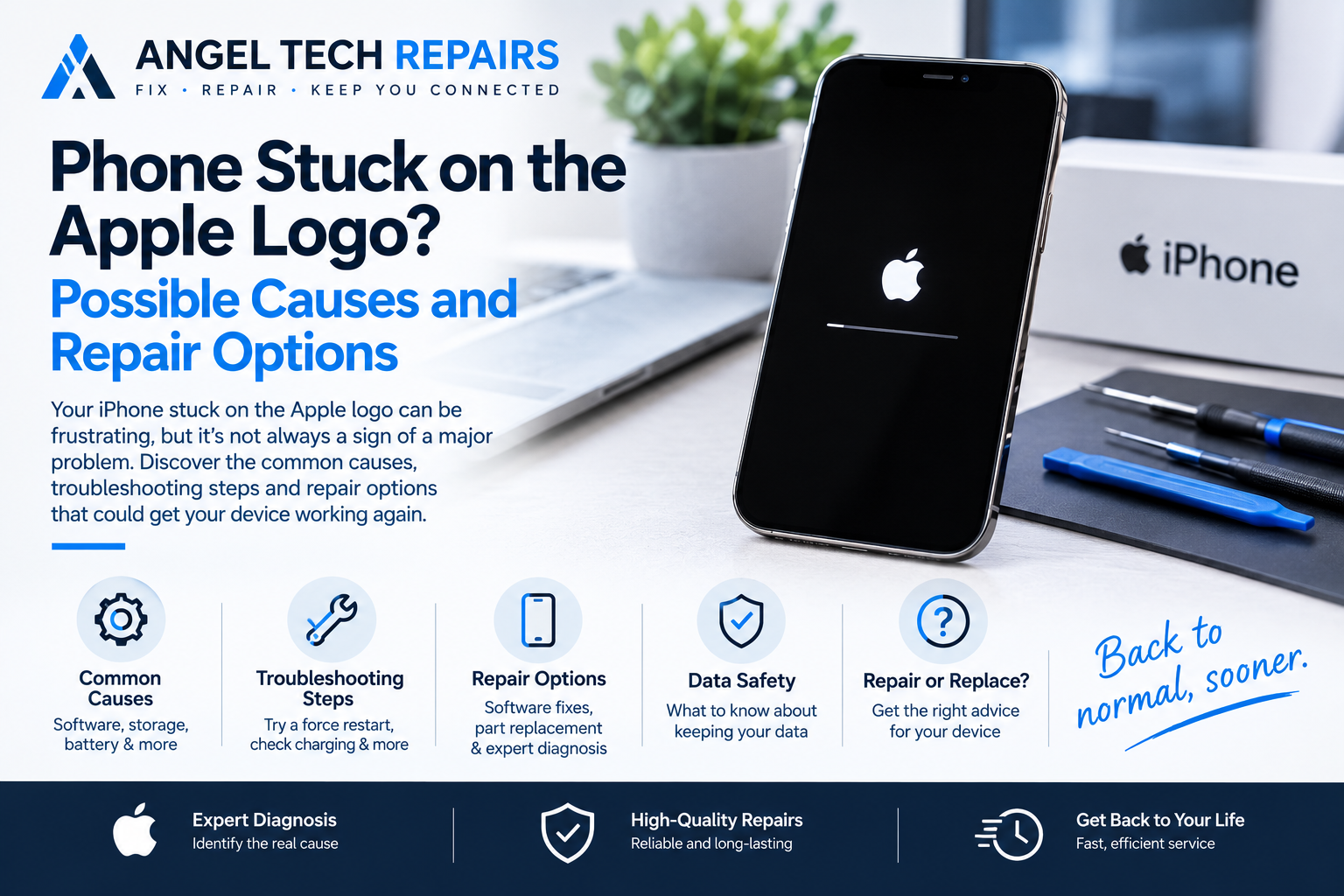
Phone Stuck on the Apple Logo? Possible Causes and Repair Options
Introduction
Seeing your iPhone stuck on the Apple logo can be worrying, especially when the device refuses to finish starting up. You may see the Apple logo appear on the screen, but instead of reaching the lock screen, the phone simply stays there or repeatedly restarts.
This problem can have several causes, ranging from a temporary software issue to a more serious hardware fault. Fortunately, an iPhone stuck on the Apple logo does not necessarily mean that the device needs to be replaced.
In this guide, we’ll look at some common causes, troubleshooting steps you can try, and when professional iPhone repair may be necessary.
What Does It Mean When an iPhone Is Stuck on the Apple Logo?
During a normal startup, an iPhone displays the Apple logo briefly before loading iOS and taking you to the lock screen.
If the Apple logo remains on the screen for an unusually long time, or the device repeatedly shows the logo and restarts, the phone may be experiencing a startup or boot-loop problem.
The cause can be software-related, but hardware problems can produce similar symptoms.
Common Reasons an iPhone Gets Stuck on the Apple Logo
1. A Failed or Interrupted Software Update
One possible cause is an iOS update that didn’t complete correctly.
Updates require the phone to install and configure system files. If the process is interrupted or encounters an error, the device may have difficulty completing its startup sequence.
This can sometimes happen after an interrupted update, connectivity issue, insufficient storage, or unexpected shutdown.
2. Insufficient Storage
Your iPhone needs available storage to perform certain system operations.
If the device was already almost completely full before a software update or system process, insufficient storage may contribute to startup problems.
Regularly removing unnecessary photos, videos, applications, and downloaded files can help prevent storage-related issues.
3. Software or System Errors
Corrupted system files or an unexpected software failure can prevent iOS from loading normally.
A phone that previously worked correctly but suddenly becomes stuck on the Apple logo may have encountered a software problem.
In some cases, restarting the device may resolve a temporary issue. If the problem continues, additional troubleshooting may be required.
4. A Faulty App or System Configuration
Although less common, software conflicts can sometimes contribute to instability.
If the phone was experiencing crashes, freezing, or repeated restarts before becoming stuck on the Apple logo, the problem may be related to the operating system or another software issue.
5. Physical or Liquid Damage
Hardware damage is another possibility.
If your iPhone was recently dropped, exposed to liquid, or subjected to significant physical impact, internal components could have been affected.
A phone may continue to switch on after an accident while still developing an underlying hardware fault.
6. Battery or Power Problems
An ageing or damaged battery can sometimes cause unexpected shutdowns and restarting behaviour.
If the phone repeatedly attempts to start but cannot remain powered properly, the battery or another part of the power system may need to be inspected.
What Can You Try at Home?
Before arranging a repair, there are a few basic steps you can try.
Force Restart the iPhone
A force restart can sometimes resolve a temporary software problem.
The exact button sequence depends on your iPhone model. For many newer iPhones, the process involves pressing and releasing the volume buttons followed by holding the side button until the Apple logo appears.
If the phone remains stuck after a force restart, avoid repeatedly performing the procedure and move on to the next troubleshooting option.
Check the Charging Connection
Connect the iPhone to a reliable charger and allow it some time to charge.
If the battery was extremely low, the phone may need time before it can start normally.
It’s also worth checking the charging cable and adapter for visible damage.
Connect the iPhone to a Computer
Depending on the situation and iPhone model, connecting the device to a Mac or Windows computer may allow you to access recovery or update options.
If the phone is detected, you may be able to attempt an iOS update without immediately erasing the device.
However, care is important because some recovery procedures can result in data loss.
What If These Steps Don’t Work?
If the iPhone continues to display the Apple logo after basic troubleshooting, the issue may require professional diagnosis.
A repair technician can investigate whether the problem is software-related or caused by an internal component.
Depending on the diagnosis, possible solutions may include:
- Software troubleshooting
- iOS recovery or restoration
- Battery replacement
- Charging-system inspection
- Internal connector repair
- Component-level repair
- Diagnosis of liquid or physical damage
The appropriate solution depends on the specific cause of the problem.
Will You Lose Your Data?
This is one of the biggest concerns when an iPhone won’t start normally.
Not every repair or troubleshooting procedure requires data to be erased. However, certain restoration procedures can remove information from the device.
If your iPhone contains important photos, messages, contacts, or other files that aren’t backed up, tell the technician about the data before authorising any procedure.
Where possible, a repair professional can first investigate whether the device can be recovered without unnecessarily erasing its contents.
When Should You Seek Professional Repair?
Consider professional assistance if:
- The Apple logo remains on the screen indefinitely.
- The phone repeatedly restarts.
- A force restart doesn’t resolve the problem.
- The phone was recently dropped.
- The device has suffered liquid exposure.
- The phone becomes unusually hot during startup.
- It won’t charge or connect properly.
- You have important data on the device and don’t want to risk unnecessary data loss.
Professional diagnosis can help determine whether you’re dealing with a software problem, battery issue, charging fault, or another hardware problem.
Repair or Replace the iPhone?
An iPhone stuck on the Apple logo doesn’t automatically mean that you need a new phone.
If the device is otherwise in good condition, repairing the underlying problem may be a practical option. The right decision depends on the age and condition of the iPhone, the cause of the fault, repair costs, battery condition, and the value of the device.
A proper diagnosis should come before making that decision.
How to Reduce the Risk of Future Problems
Although not every startup problem can be prevented, a few habits can help keep your iPhone in better condition:
Keep iOS updated: Installing system updates when appropriate can provide important bug fixes and security improvements.
Maintain free storage: Avoid allowing your iPhone’s storage to remain completely full.
Back up important data: Regular backups can make a major difference if your phone develops a serious software or hardware problem.
Use reliable charging accessories: Damaged or poor-quality charging equipment can create additional problems.
Protect the device from drops and liquid: Physical and liquid damage can lead to problems that aren’t always immediately visible.
Professional iPhone Repair When Your Device Won’t Start
An iPhone stuck on the Apple logo can be caused by something relatively simple, but persistent problems may indicate a deeper software or hardware issue.
Trying a force restart and checking the charging setup are reasonable first steps. If the problem continues, professional diagnosis can help identify the cause and determine whether the device can be repaired.
Most importantly, don’t assume that an iPhone stuck on the Apple logo is automatically beyond repair. A qualified technician can assess the device and explain the available repair options before you decide what to do next.
If your iPhone is stuck on the Apple logo and basic troubleshooting hasn’t helped, visit Angel Tech Repairs at angeltechrepairs.com to learn more about getting your device assessed.