
Samsung Galaxy Battery Draining Overnight? Here’s How to Fix It
Introduction
Is your Samsung Galaxy battery dropping from 100% to 20% far too quickly? Do you find yourself charging your phone several times a day, or waking up to discover that your battery has drained significantly overnight?
Fast battery drain is frustrating, but it doesn’t always mean your Samsung phone needs a new battery. Background apps, software updates, weak network signals, high screen brightness and an ageing battery can all contribute to increased battery consumption. Samsung also explains that smartphone batteries are consumable components and their capacity gradually decreases with repeated charging and discharging.
The good news is that there are several things you can check before considering a battery replacement.
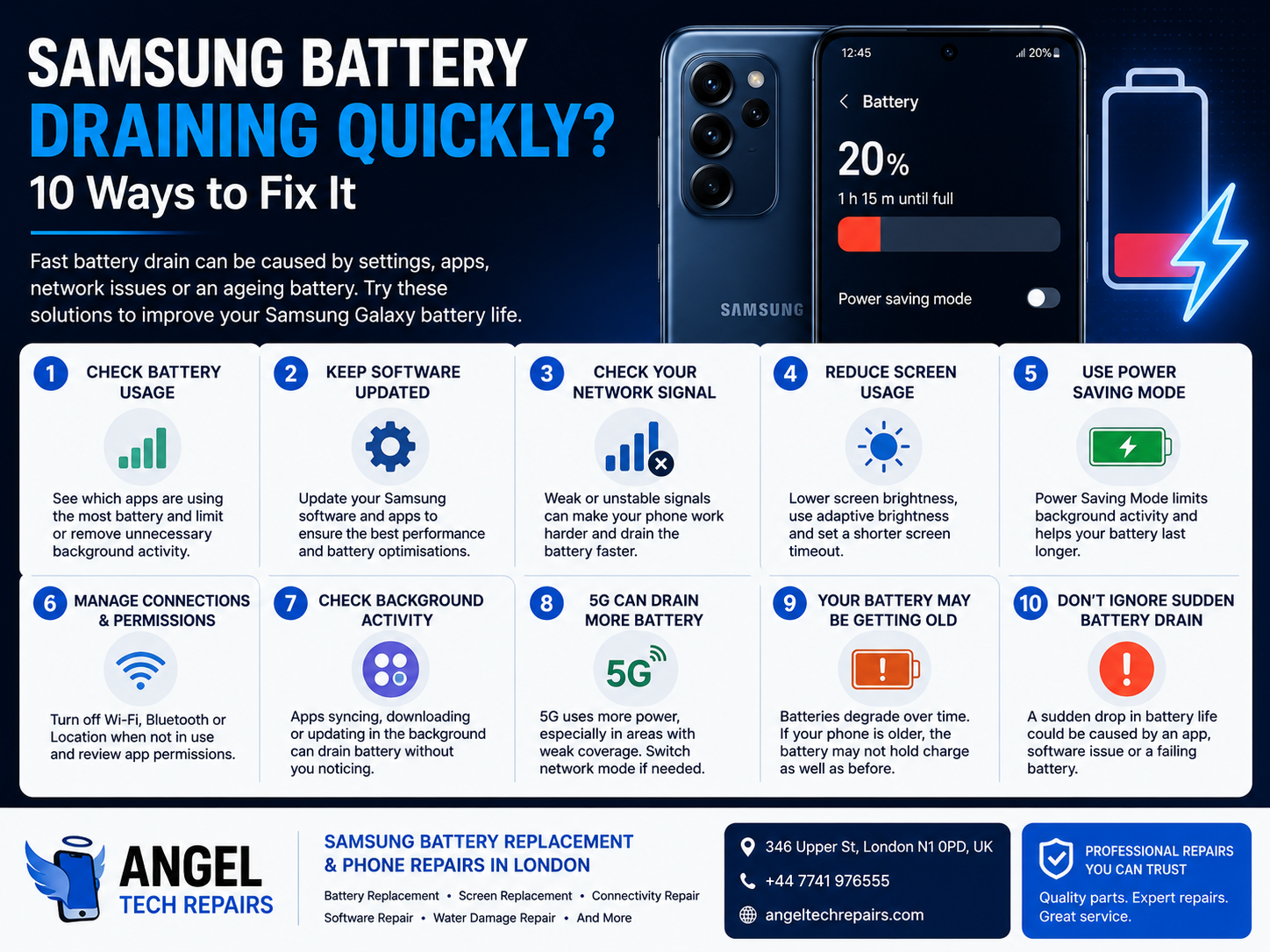
1. Check Which Apps Are Using Your Battery
One of the first things to check is your phone’s battery usage.
Some apps can continue working in the background even when you’re not actively using them. Streaming services, social media apps, navigation services and other apps that frequently use data or location services can contribute to battery drain.
Check your battery usage to identify apps consuming an unusually large amount of power. If an app you rarely use is consuming significant battery, consider restricting its background activity or uninstalling it if you no longer need it.
2. Keep Your Samsung Software Updated
Software updates can include improvements, bug fixes and optimisations that affect battery performance.
Samsung recommends checking for software updates when troubleshooting battery-drain problems. You should also keep apps updated through the Galaxy Store and Google Play Store.
Go to your Samsung phone’s Settings > Software update and check whether an update is available.
It’s also worth updating your apps, particularly if the battery drain started after installing or updating a particular application.
3. Check Your Network Signal
A weak mobile signal can cause your phone to work harder to maintain a connection.
If you regularly use your Samsung phone in an area with poor reception, you may notice faster battery consumption. Samsung specifically identifies unstable or weak network connections as one potential reason for increased battery drain.
If you notice that your battery drains particularly quickly in certain locations, poor network coverage could be part of the problem.
4. Reduce Unnecessary Screen Usage
Your display is one of the biggest consumers of battery power.
If your screen is constantly running at high brightness, consider enabling adaptive brightness or reducing the brightness manually.
You can also reduce the screen timeout so that your display switches off sooner when you’re not using your phone.
Features such as an always-on display can also contribute to battery consumption. If battery life is a priority, review your display settings and disable features you don’t regularly use.
5. Use Power Saving Mode
Samsung Galaxy devices include power-saving features designed to reduce battery consumption.
Power Saving Mode can limit certain background activities and features to help your phone last longer when the battery is running low.
It’s particularly useful when you know you won’t have access to a charger for several hours.
However, if your battery is draining unusually fast even when you’re barely using the phone, power-saving mode shouldn’t be viewed as a permanent solution. It is better to investigate the underlying cause.
6. Check Location, Bluetooth and Other Connections
Features such as location services, Bluetooth and mobile data can consume additional power depending on how they’re being used.
You don’t necessarily need to turn everything off permanently. Instead, review which apps have access to location services and disable unnecessary permissions.
Likewise, switch off connections you aren’t using when appropriate.
The goal isn’t to disable all of your phone’s useful features — it’s to avoid unnecessary background activity.
7. Your Phone May Be Working Hard in the Background
Sometimes battery drain isn’t obvious.
Your phone may be syncing files, restoring data, downloading updates or performing other background tasks.
Samsung notes that restoring large amounts of photos, videos, files and apps can temporarily increase battery consumption and device temperature.
If you’ve recently transferred data to your Samsung phone, installed many apps or completed a major update, give the device some time and monitor its battery usage.
8. 5G Can Contribute to Faster Battery Drain
5G provides faster connectivity, but maintaining network connections can sometimes use more power.
Samsung notes that 5G devices may consume more battery because they can maintain connections with multiple network technologies to provide reliable calls, messages and data.
If you’re in an area with weak 5G coverage, you may notice increased battery consumption.
If battery life is more important than maximum network speed, check your mobile network settings and see whether another network mode is more suitable for your location and usage.
9. Your Samsung Battery May Simply Be Getting Old
If you’ve tried the software and settings fixes but your phone still loses battery rapidly, the battery itself may be reaching the end of its useful life.
Lithium-ion batteries naturally lose capacity over time. Samsung explains that repeated charging and discharging gradually reduces battery capacity, and this lost capacity cannot be restored.
Common signs of an ageing battery can include:
- Battery percentage dropping unusually quickly
- Needing to charge several times a day
- Unexpected shutdowns
- The phone becoming unusually warm
- Battery life being much shorter than it used to be
- The phone struggling to maintain power under normal use
If these symptoms sound familiar, a professional battery inspection may be worthwhile.
10. Don’t Ignore Sudden Battery Drain
A gradual reduction in battery life is normal as a phone gets older. But if your Samsung suddenly starts losing battery much faster than usual, investigate the problem.
A recently installed app, software issue, background process or network problem could be responsible.
Start by checking battery usage and installing available software and app updates. If the problem continues, professional diagnostics can help determine whether the issue is software-related or caused by the battery or another hardware component.
When Should You Replace Your Samsung Battery?
If your Samsung phone is otherwise working well, you don’t necessarily need to replace the entire device just because the battery has deteriorated.
A battery replacement can restore much of the phone’s everyday usability and may be considerably more economical than purchasing a new smartphone.
Battery replacement is particularly worth considering if:
- Your phone is still fast enough for your needs
- The screen and other components are in good condition
- The battery is the main problem
- You want to extend the life of your phone
- You’re otherwise happy with your Samsung Galaxy
However, if your phone has multiple hardware problems, severe water damage or other major faults, it may be worth comparing the cost of repair with replacing the device.
Why Choose Professional Samsung Battery Replacement?
Replacing a smartphone battery requires appropriate tools, parts and technical knowledge. Attempting to open a phone yourself can cause additional damage if you’re unfamiliar with the device’s construction.
At Angel Tech Repairs, Samsung phones are among the smartphones the team repairs. The company offers battery replacement alongside screen, connectivity, software and other phone repair services.
The repair process starts with diagnosing the device, followed by the approved repair or replacement and testing before the phone is returned.
Final Thoughts
A Samsung battery that drains quickly doesn’t automatically mean you need a new phone.
Start by checking battery usage, updating your software and apps, reviewing background activity, managing screen settings and considering network conditions. If the problem continues — particularly on an older phone — the battery itself may have lost significant capacity.
A professional battery assessment can help you determine whether a Samsung battery replacement is the right solution.
Samsung Battery Replacement & Phone Repairs in London
If your Samsung Galaxy isn’t lasting through the day, Angel Tech Repairs can diagnose the problem and advise whether a battery replacement or another repair is appropriate.
Angel Tech Repairs provides smartphone repair services, including battery replacement, screen replacement, connectivity repair, software repair and water-damage repair.
Angel Tech Repairs
346 Upper St, London N1 0PD, UK
Phone: +44 7741 976555
Website: https://angeltechrepairs.com/
Visit Angel Tech Repairs to book a repair or contact the team.
Battery performance varies by Samsung model, software version, network conditions and usage. Settings and menu names may also vary between Galaxy devices.